Working with bodies
A part can hold many bodies, and most tools say which ones they change. That lets you model a lid and a base together, use one body to shape another, or split a part into pieces to print.
Making a second body
A new solid joins the bodies it touches, unless you untick Merge result in its panel. Untick it and the solid becomes a body of its own, listed in the Solid Bodies folder.
Choosing which bodies a feature changes
Cuts and other tools that change existing bodies have a Feature Scope group: All bodies, or Selected bodies and the ones you click.
The body tools
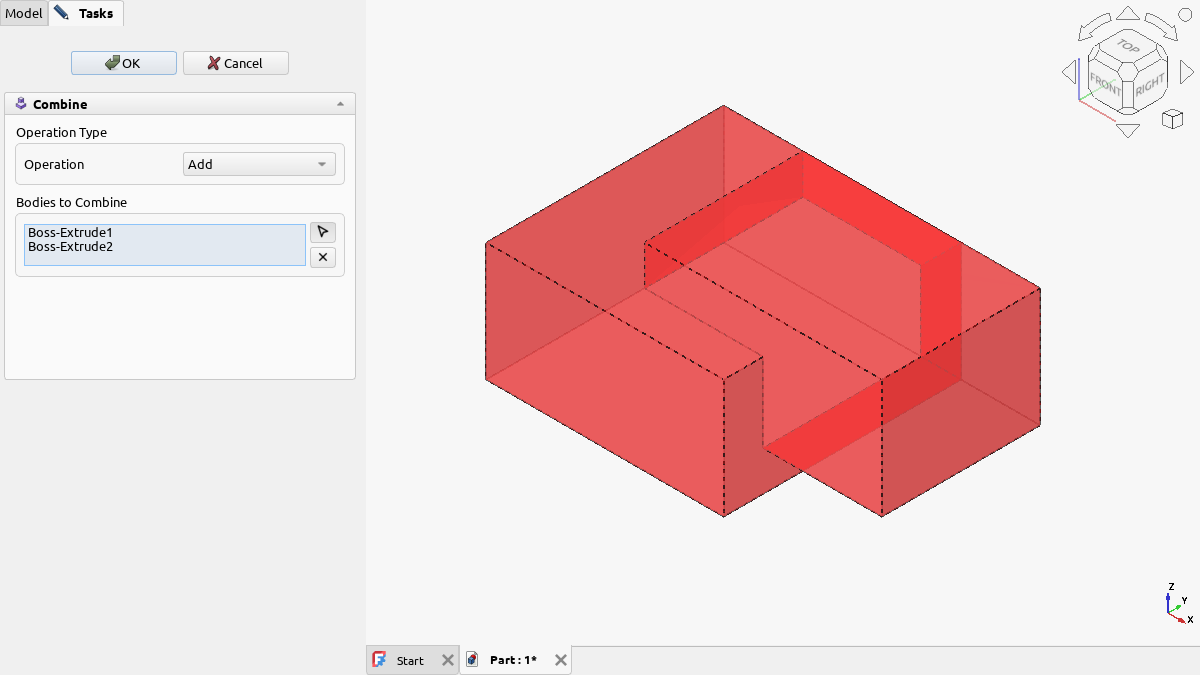
- Combine: add bodies together, subtract one from another, or keep what they share.
- Split: cut a body into bodies with planes, sketches or surfaces.
- Move/Copy Body: move or copy bodies.
- Delete/Keep Body: drop bodies, or keep only some.
- Indent, Intersect, Lip/Groove: tools that work between bodies.
In the 3D view
Right-click a body for Isolate (show only it), Hide and its other tools. With bodies hidden, right-click empty space for Show Hidden Bodies.
See parts and bodies for how bodies keep their names through changes.