Center of Mass
 Adds a point at the solid bodies' centre of mass; it follows the model and can be used like any point.
Center of Mass adds a point at the solid bodies' centre of mass (for one density). It moves when the model changes, and can be used like any point: to measure from, or to place things on.
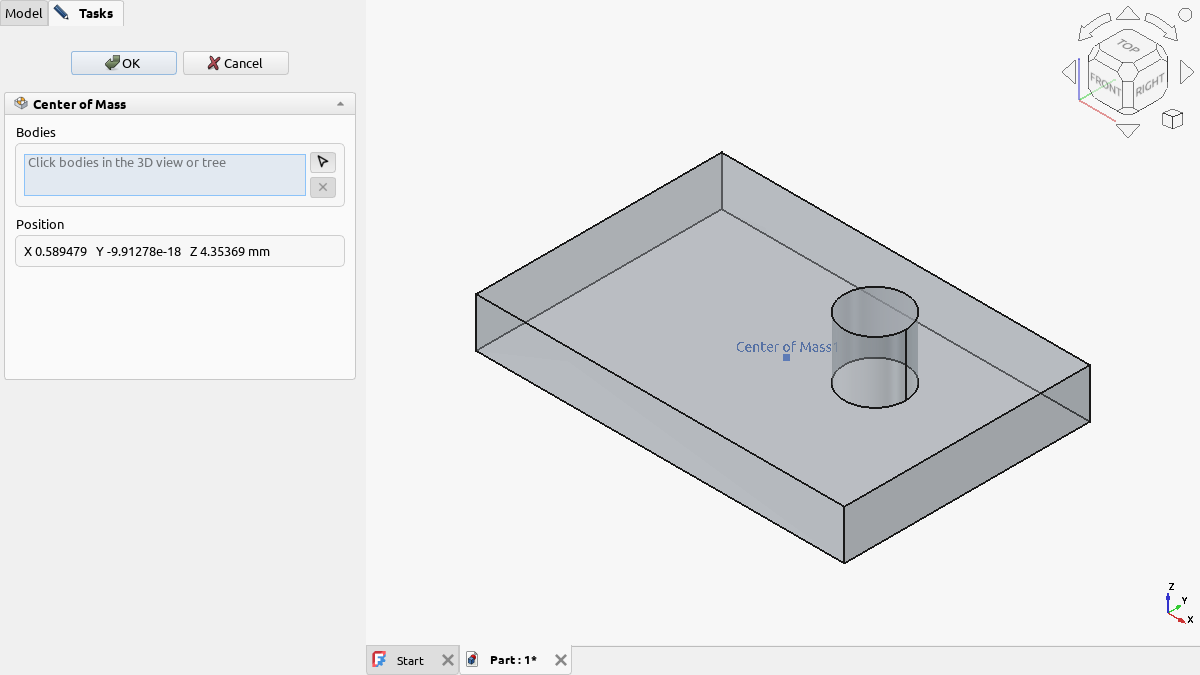
How to use it
- Click Center of Mass.
- Leave Bodies empty for all solid bodies, or click the ones to include.
- Click OK. Its position shows in the panel.
Where to find it
- The Reference Geometry toolbar, in the Reference Geometry drop-down.
- Solid Design → Reference Geometry → Center of Mass
- Insert → Reference Geometry → Center of Mass
- Command search: press / in the 3D view and type its name.
- The command line: : then
centerofmass.
The panel
Every control's tooltip says the same as here: hover over it in FreeCAD. OK (or Enter) makes the feature, Cancel (or Esc) leaves the model as it was.
Bodies
| Control | Kind | What it does |
|---|---|---|
| Bodies | Selection list: click bodies in the 3D view or tree | The solid bodies it measures (none picked: every solid body) |
Position
X 0.589479 Y -9.91278e-18 Z 4.35369 mm
Properties
All properties
What the feature stores, as the Property editor shows it (select the feature in the tree, then the Data tab). The panel sets these for you.
| Property | Kind | Default | What it is |
|---|---|---|---|
Bodies |
List | – | The bodies it measures, by ID (empty: every solid body) |