Context Toolbar
 Shows the tools that fit a face, edge or vertex by the pointer when you click it.
The context toolbar shows the tools that fit what you just clicked, beside the pointer: click a face and Sketch, Extrude, Hole Wizard and more are one click away. Click an edge and you get Fillet and Chamfer. Its first button edits the feature that made the face.
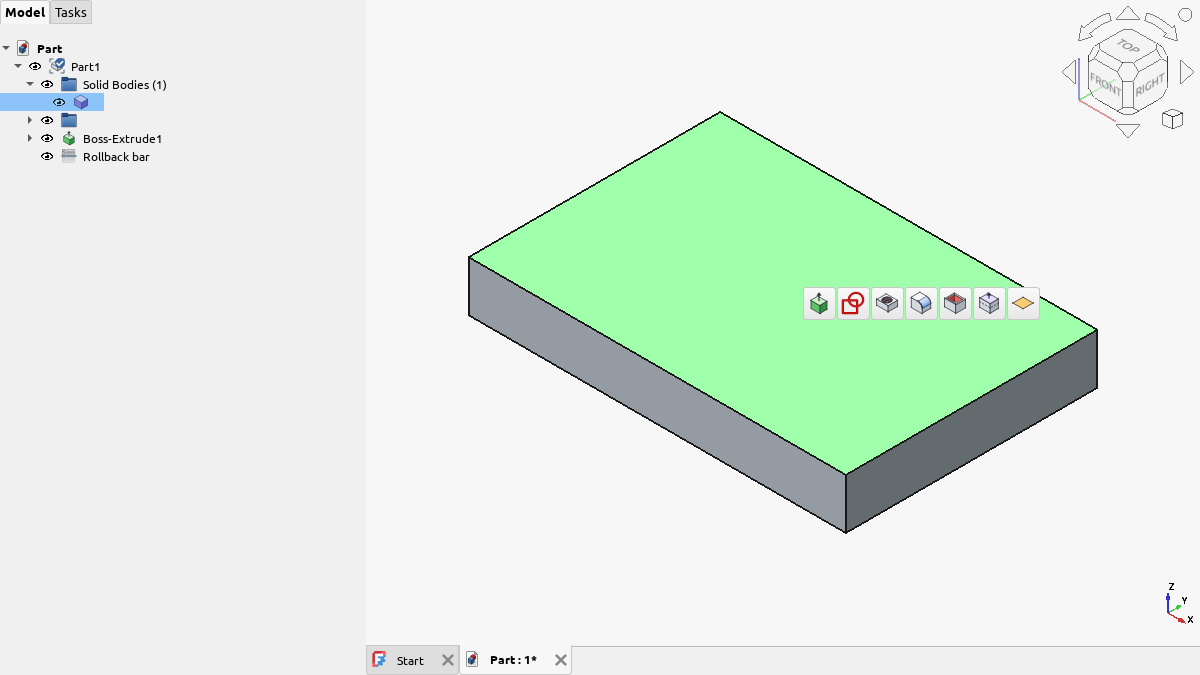
How to use it
- Click a face, edge or vertex in the 3D view.
- Click a tool on the bar by the pointer. It fades as the pointer moves away.
Good to know
- Context Toolbar in the Solid Design menu turns it on and off.
Where to find it
- Solid Design → Context Toolbar
- Command search: press / in the 3D view and type its name.