Freeform
 Pushes or pulls a face at points you place on it; its edges stay put.
Freeform pushes or pulls a face at points you place on it; its edges stay put. Use it to shape organic surfaces.
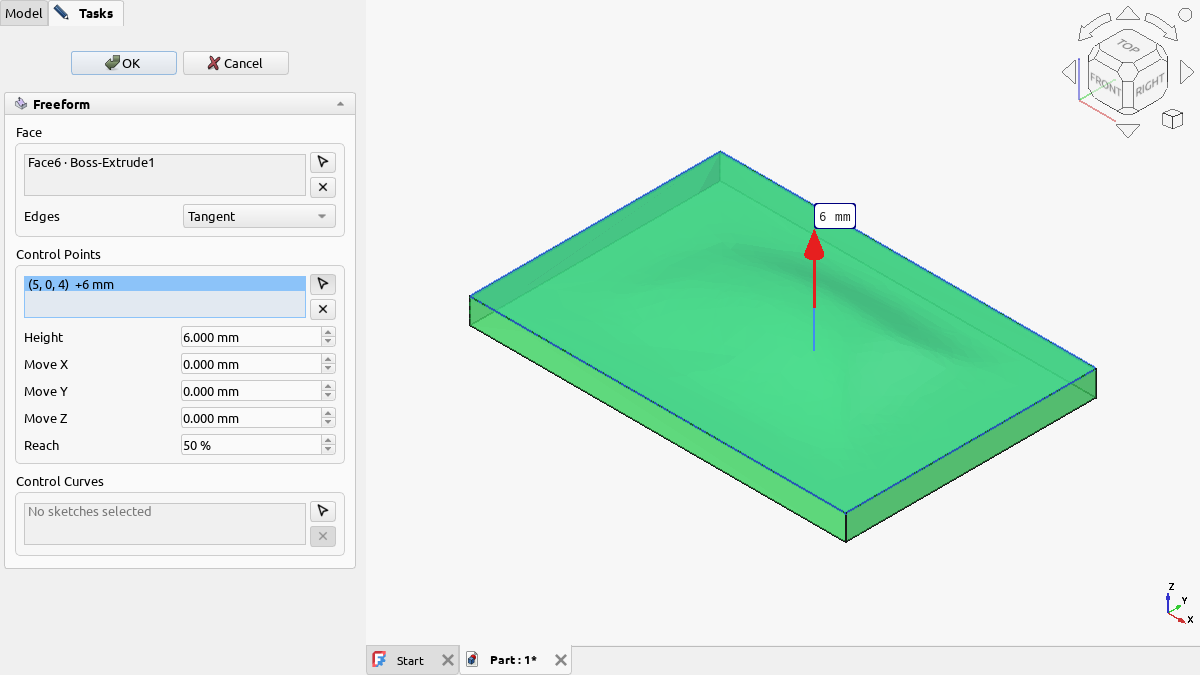
How to use it
- Select a face and click Freeform.
- Click on the face to add Control Points.
- Select a point in the list and set its Height (or drag its arrow).
- Click OK.
Good to know
- Control Curves shape the face along sketched curves instead of at points.
Where to find it
- The Bodies toolbar, in the Deform Bodies drop-down.
- Solid Design → Bodies → Freeform
- Insert → Features → Freeform
- Command search: press / in the 3D view and type its name.
- The command line: : then
freeform(below).
The panel
Every control's tooltip says the same as here: hover over it in FreeCAD. OK (or Enter) makes the feature, Cancel (or Esc) leaves the model as it was.
Face
| Control | Kind | What it does |
|---|---|---|
| Faces | Selection list: click faces | The face to change (its edges stay put) |
| Edges | One of: Contact, Tangent, Curvature | How the change meets the face's edges: Contact (a crease), Tangent (smooth) or Curvature (smoothest) |
Control Points
Click on the face to add a point; drag its arrow or type how far it moves
| Control | Kind | What it does |
|---|---|---|
| Points | Selection list: click on the face | Control points; click one in the list to set its height |
| Height | A number | How far the selected point moves along the face's normal (negative: in) |
| Move X | A number | Slide the selected point sideways across the face (the part along the normal is ignored; Height does that) |
| Move Y | A number | Slide the selected point sideways across the face (the part along the normal is ignored; Height does that) |
| Move Z | A number | Slide the selected point sideways across the face (the part along the normal is ignored; Height does that) |
| Reach | A number | How far each point's pull spreads, as a share of the face's size |
Control Curves
The face is pulled onto these curves
| Control | Kind | What it does |
|---|---|---|
| Sketches | Selection list: click sketches | Sketches or curves the face passes through |
Drag handles
While the panel is open, drag the handles in the 3D view to set Point0+, or click a handle's value and type. The same handles show when you select the feature in the tree, so you can change it without opening the panel. See drag handles.
On the command line
Press : in the 3D view and type freeform, then what to set. See the command line for how it works.
Options it takes
| Option | How to type it | What it is |
|---|---|---|
Continuity |
a word: contact, tangent, curvature |
How the change meets the face's edges |
Reach |
reach=a value |
How far each point's change spreads, as a share of the face's size |
Properties
All properties
What the feature stores, as the Property editor shows it (select the feature in the tree, then the Data tab). The panel sets these for you.
| Property | Kind | Default | What it is |
|---|---|---|---|
Items |
Picks | – | The face to change |
ControlPoints |
List | – | Points on the face and how far each moves: x,y,z|height[|dx,dy,dz sideways] |
ControlCurves |
Objects | – | Curves (sketches) the face is pulled onto |
Continuity |
Choice | Tangent | How the change meets the face's edges Choices: Contact, Tangent, Curvature. |
Reach |
Percent | 50 | How far each point's change spreads, as a share of the face's size |