Curve Driven Pattern
 Repeats features or bodies along a curve.
Curve Driven Pattern repeats features or bodies along a curve: holes along a curved edge, studs along a path.
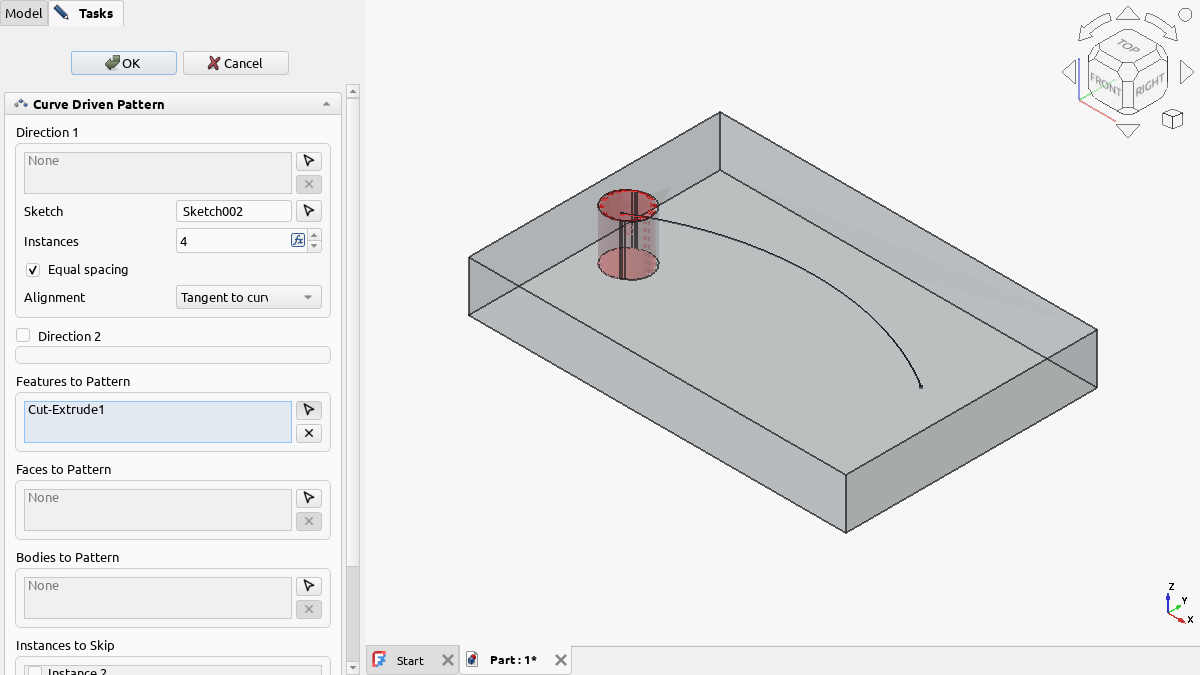
How to use it
- Select the curve (a sketch or an edge) and click Curve Driven Pattern.
- Click the features to repeat into Features to Pattern.
- Set the number of Instances; with Equal spacing they share out the curve's length.
- Choose Alignment: the instances turn to follow the curve (Tangent to curve) or keep the original's direction.
- Click OK.
Where to find it
- The Features toolbar, in the Patterns drop-down.
- Solid Design → Patterns → Curve Driven Pattern
- Insert → Pattern/Mirror → Curve Driven Pattern
- Command search: press / in the 3D view and type its name.
- The command line: : then
curvedrivenpattern(below).
The panel
Every control's tooltip says the same as here: hover over it in FreeCAD. OK (or Enter) makes the feature, Cancel (or Esc) leaves the model as it was.
Direction 1
| Control | Kind | What it does |
|---|---|---|
| Edges | Selection list: click edges | The curve to pattern along: model edges, end to end |
| Sketch | Selection box: click a sketch | Or a sketch: its curves, end to end |
| Instances | A count | How many, counting the original |
| Equal spacing | A check box | Spread the instances over the whole curve |
| Spacing | A length | Distance along the curve (a flip button beside it; shown for some choices only) |
| Alignment | One of: Tangent to curve, Align to seed | Tangent to curve: each instance turns with the curve. Align to seed: they keep the original's orientation. |
Direction 2
Pattern along a second curve too
Optional: tick its title to use it.
| Control | Kind | What it does |
|---|---|---|
| Edges | Selection list: click edges | The second curve: model edges, end to end (shown for some choices only) |
| Sketch | Selection box: click a sketch | Or a sketch (shown for some choices only) |
| Instances | A count | How many along the second curve, counting the first row (shown for some choices only) |
| Equal spacing | A check box | Spread them over the whole second curve (shown for some choices only) |
| Spacing | A length | Distance along the second curve (a flip button beside it; shown for some choices only) |
Features to Pattern
| Control | Kind | What it does |
|---|---|---|
| Features | Selection list: click features in the tree, or their faces | The features to repeat: click them in the tree, or click a face they made |
Faces to Pattern
| Control | Kind | What it does |
|---|---|---|
| Faces | Selection list: click faces | Every face of a boss, hole or pocket to repeat (its walls and top or floor). Material is added where they bound material, cut where they bound a gap. |
Bodies to Pattern
| Control | Kind | What it does |
|---|---|---|
| Bodies | Selection list: click bodies in the 3D view or tree | Whole bodies to repeat |
Instances to Skip
Tick the instances to leave out
| Control | Kind | What it does |
|---|---|---|
| A list | Every instance but the original: tick one to leave it out | |
| Pick Instances in the View | A button | While on, clicking the model where an instance is (or would be) leaves it out, or puts it back |
On the command line
Press : in the 3D view and type curvedrivenpattern, then what to set. See the command line for how it works.
Values typed straight after the name set, in order: Instances. For example :curvedrivenpattern 4.
Options it takes
| Option | How to type it | What it is |
|---|---|---|
Reverse |
reverse turns it on, reverse=no off |
Reverse direction |
Instances |
instances=a whole number |
Number of instances (with the seed) |
EqualSpacing |
equalspacing turns it on, equalspacing=no off |
Spread over the whole curve |
Spacing |
spacing=a value |
Distance along the curve |
Alignment |
a word: tangenttocurve, aligntoseed |
Tangent to curve: instances turn with the curve. Align to seed: they keep the seed's orientation |
Direction2 |
direction2 turns it on, direction2=no off |
Pattern along a second curve too |
Reverse2 |
reverse2 turns it on, reverse2=no off |
Reverse direction 2 |
Instances2 |
instances2=a whole number |
Number of instances along it |
EqualSpacing2 |
equalspacing2 turns it on, equalspacing2=no off |
Spread over the whole curve |
Spacing2 |
spacing2=a value |
Distance along the second curve |
Properties
All properties
What the feature stores, as the Property editor shows it (select the feature in the tree, then the Data tab). The panel sets these for you.
| Property | Kind | Default | What it is |
|---|---|---|---|
Features |
Objects | – | Features to repeat |
Bodies |
List | – | Bodies to repeat, by ID |
Faces |
Picks | – | Faces to repeat: every face of a boss, hole or pocket |
Curve |
Picks | – | The curve: model edges |
CurveSketch |
Object | – | Or: a sketch (its curves, end to end) |
Reverse |
Yes/No | No | Reverse direction |
Instances |
Whole number | 4 | Number of instances (with the seed) |
EqualSpacing |
Yes/No | Yes | Spread over the whole curve |
Spacing |
Length | 10 mm | Distance along the curve |
Alignment |
Choice | Tangent to curve | Tangent to curve: instances turn with the curve. Align to seed: they keep the seed's orientation Choices: Tangent to curve, Align to seed. |
Direction2 |
Yes/No | No | Pattern along a second curve too |
Curve2 |
Picks | – | The second curve: model edges |
CurveSketch2 |
Object | – | Or: a sketch |
Reverse2 |
Yes/No | No | Reverse direction 2 |
Instances2 |
Whole number | 2 | Number of instances along it |
EqualSpacing2 |
Yes/No | Yes | Spread over the whole curve |
Spacing2 |
Length | 10 mm | Distance along the second curve |
InstancesToSkip |
List | – | Instances left out, by number (the seed is 1); with Direction 2, by i,j |