Sketch Driven Pattern
 Repeats features or bodies at a sketch's points.
Sketch Driven Pattern puts a copy of features at each point of a sketch: holes at sketched positions that don't follow a grid.
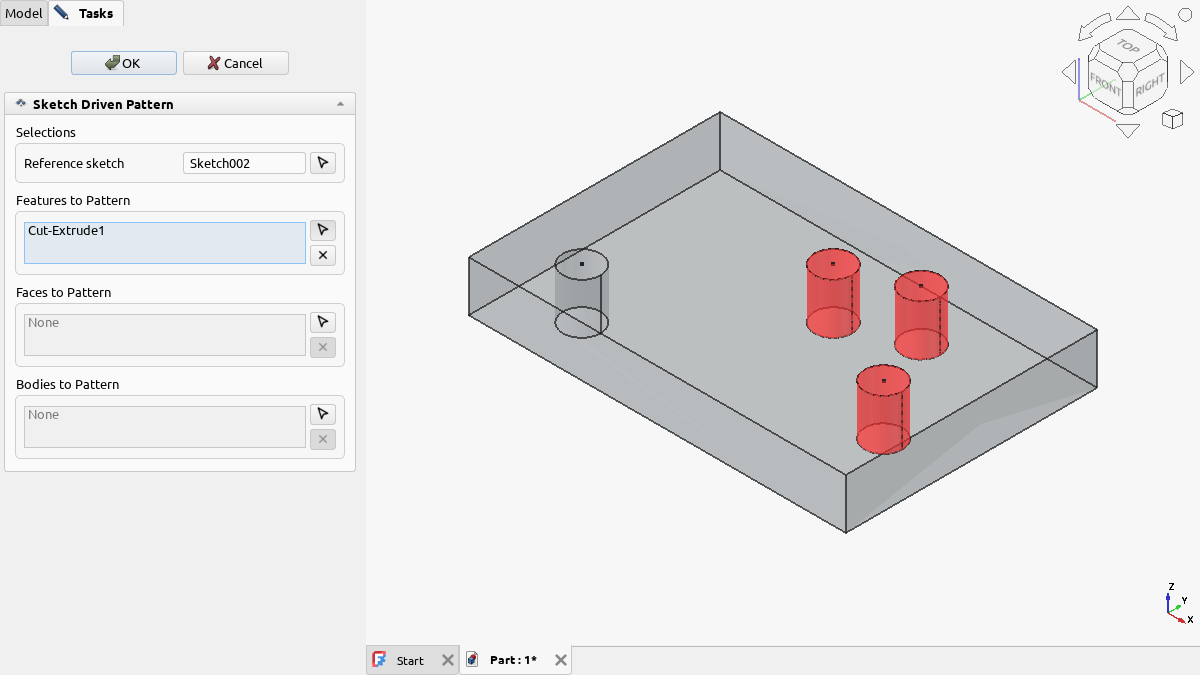
How to use it
- Sketch points where the copies go.
- Select the sketch and click Sketch Driven Pattern.
- Click the features to repeat into Features to Pattern.
- Click OK.
Where to find it
- The Features toolbar, in the Patterns drop-down.
- Solid Design → Patterns → Sketch Driven Pattern
- Insert → Pattern/Mirror → Sketch Driven Pattern
- Command search: press / in the 3D view and type its name.
- The command line: : then
sketchdrivenpattern.
The panel
Every control's tooltip says the same as here: hover over it in FreeCAD. OK (or Enter) makes the feature, Cancel (or Esc) leaves the model as it was.
Selections
| Control | Kind | What it does |
|---|---|---|
| Reference sketch | Selection box: click a sketch | The sketch whose points place the instances; the original's centre is the reference |
Features to Pattern
| Control | Kind | What it does |
|---|---|---|
| Features | Selection list: click features in the tree, or their faces | The features to repeat: click them in the tree, or click a face they made |
Faces to Pattern
| Control | Kind | What it does |
|---|---|---|
| Faces | Selection list: click faces | Every face of a boss, hole or pocket to repeat (its walls and top or floor). Material is added where they bound material, cut where they bound a gap. |
Bodies to Pattern
| Control | Kind | What it does |
|---|---|---|
| Bodies | Selection list: click bodies in the 3D view or tree | Whole bodies to repeat |
Properties
All properties
What the feature stores, as the Property editor shows it (select the feature in the tree, then the Data tab). The panel sets these for you.
| Property | Kind | Default | What it is |
|---|---|---|---|
Features |
Objects | – | Features to repeat |
Bodies |
List | – | Bodies to repeat, by ID |
Faces |
Picks | – | Faces to repeat: every face of a boss, hole or pocket |
Sketch |
Object | – | The sketch whose points place the instances |