When something breaks
Change an early feature and a later one can lose what it was built on: an edge you filleted gets cut away, a face you sketched on moves. Solid Design tries hard not to let that happen, and says plainly when it does.
The health badge
The badge at the right of the status bar counts the model's errors and warnings. When it shows a count, click it.

What's Wrong
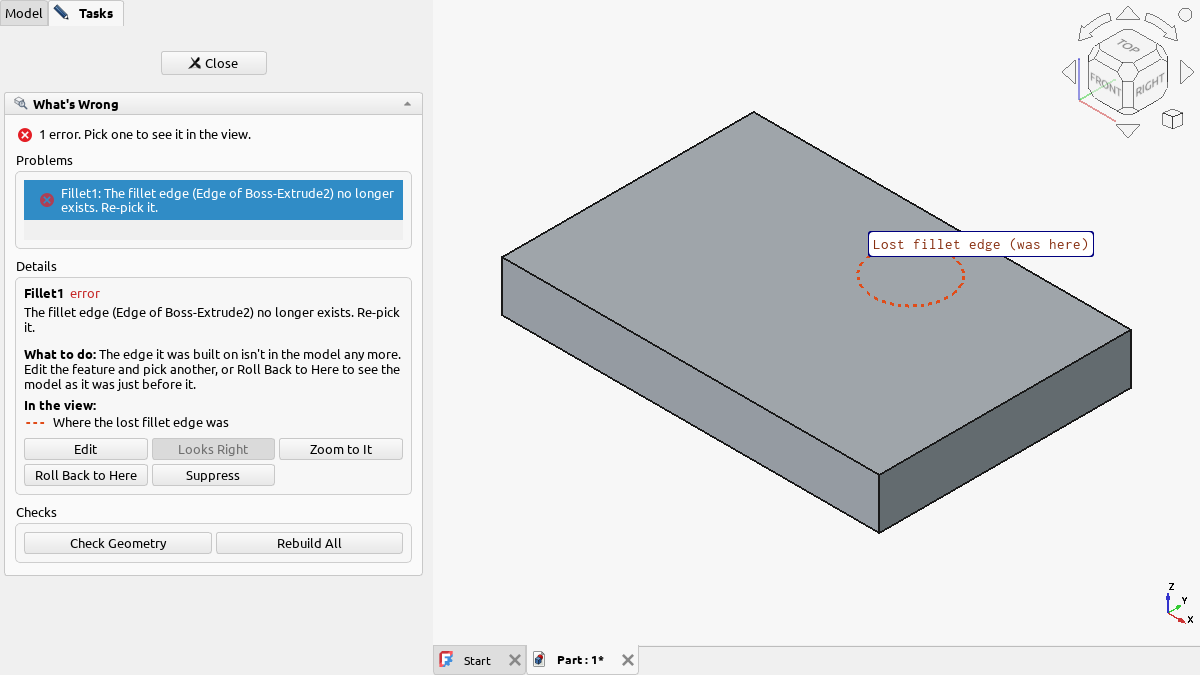
What's Wrong lists each problem with what happened, why, and what to do. Click one and the 3D view shows where: a lost edge, in red, where it was. A problem caused by another is listed under it, so you fix the first one.
Warnings: found again
When a change rebuilds a face or edge a feature used, Solid Design finds it again by its shape and place, and warns you. Check the edge shown in green is the one you meant: if it is, press Looks Right; if not, Edit the feature and pick it again. See how features remember picks.
Errors: lost
When what a feature used is gone, it can't be built. Edit it and pick something else, or Roll Back to Here to see the model just before it, as it was when you picked.
Rolling back
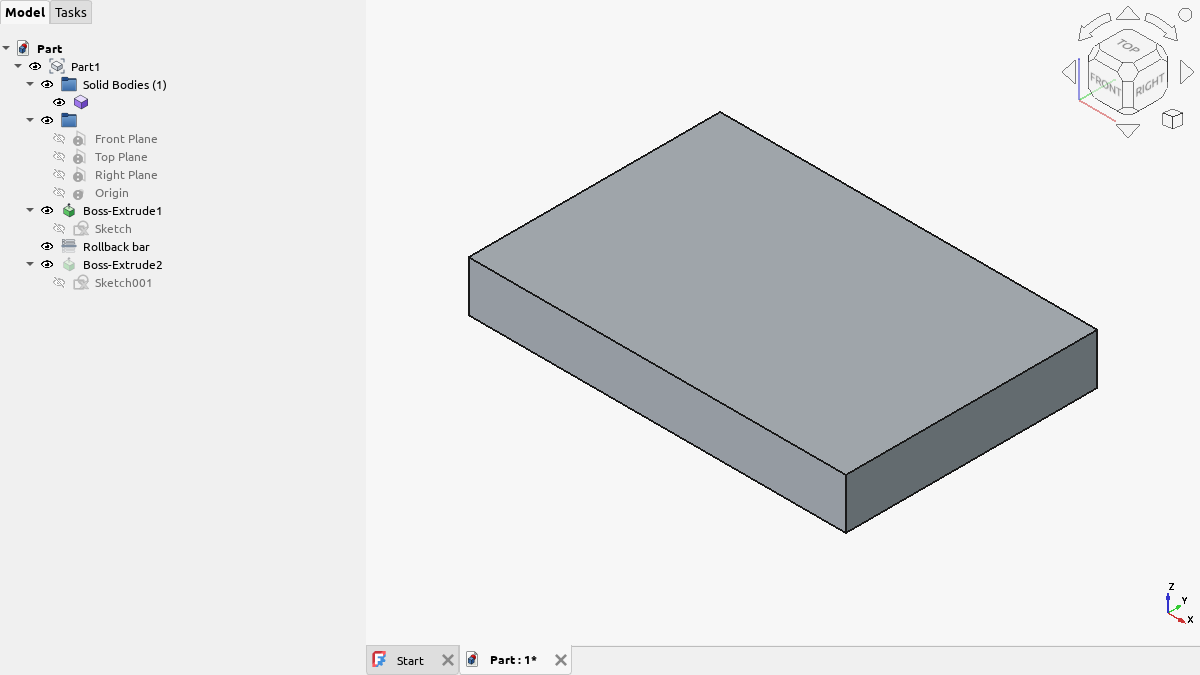
Drag the Rollback bar in the tree, or use Roll Back to Here, to see the model at any step. Features below the bar are greyed and not built. Add features there to insert them earlier in the history. Roll to End builds everything again.
Suppressing
Suppress a feature to skip it while you look into it: the model builds as if it weren't there.
Checking the geometry
Check Geometry in What's Wrong looks for what a rebuild doesn't report: invalid bodies, tiny edges and sliver faces that trouble fillets, shells and exports.