Coordinate System
 Adds a coordinate system from an origin and X and Y directions (all optional). Sketches can be attached to it.
Coordinate System adds an origin with X, Y and Z directions: to measure from, to type positions in (Table Driven Pattern), or to sketch on its XY plane.
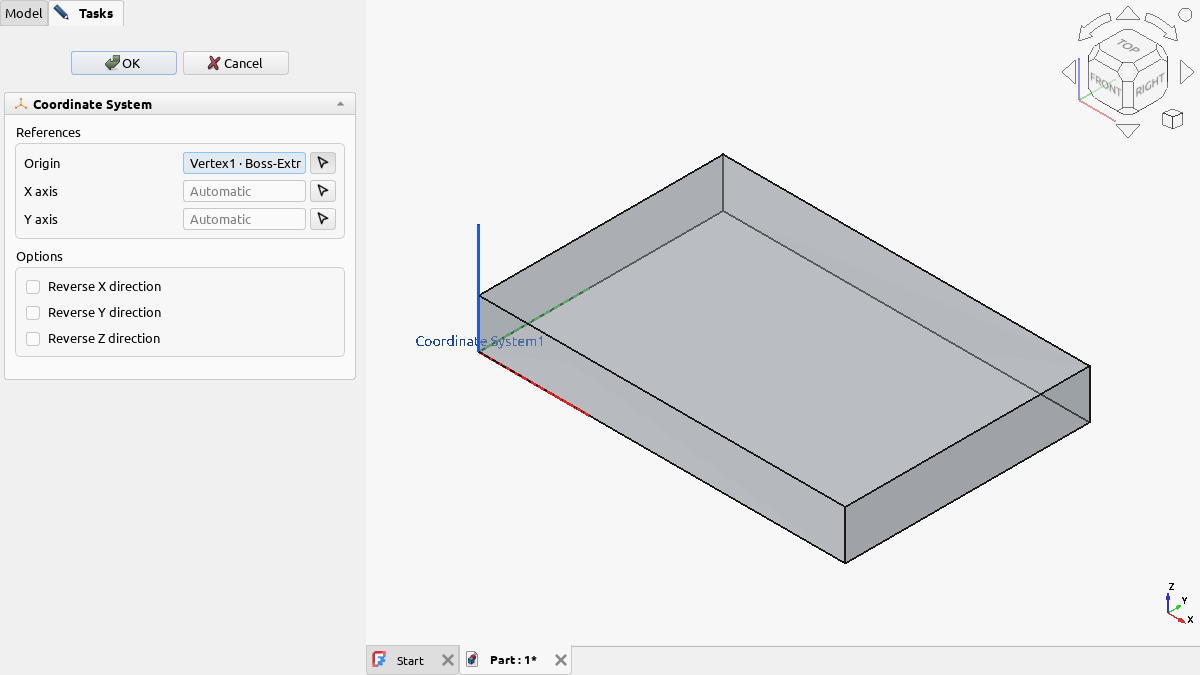
How to use it
- Select a vertex or point for its origin, and click Coordinate System.
- Optionally click edges for the X axis and Y axis; empty, they follow the part's. Reverse any direction under Options.
- Click OK.
Where to find it
- The Reference Geometry toolbar, in the Reference Geometry drop-down.
- Solid Design → Reference Geometry → Coordinate System
- Insert → Reference Geometry → Coordinate System
- Command search: press / in the 3D view and type its name.
- The command line: : then
coordinatesystem(below).
The panel
Every control's tooltip says the same as here: hover over it in FreeCAD. OK (or Enter) makes the feature, Cancel (or Esc) leaves the model as it was.
Type
Shown only for some choices above.
| Control | Kind | What it does |
|---|---|---|
| Type | One of: Origin and Axes | How the coordinate system is defined; the references below follow from it |
References
| Control | Kind | What it does |
|---|---|---|
| Origin | Selection box: click a vertex or point | A reference the coordinate system is built from |
| X axis | Selection box: click an edge or face | A reference the coordinate system is built from |
| Y axis | Selection box: click an edge or face | A reference the coordinate system is built from |
Options
| Control | Kind | What it does |
|---|---|---|
| Reverse X direction | A check box | Turn the X axis round |
| Reverse Y direction | A check box | Turn the Y axis round |
| Reverse Z direction | A check box | Turn the Z axis round (Y turns with it, so the axes stay right-handed) |
On the command line
Press : in the 3D view and type coordinatesystem, then what to set. See the command line for how it works.
Options it takes
| Option | How to type it | What it is |
|---|---|---|
Type |
a word: originandaxes |
How it is defined |
Flip |
flip turns it on, flip=no off |
Flip |
FlipX |
flipx turns it on, flipx=no off |
Reverse the X direction |
FlipY |
flipy turns it on, flipy=no off |
Reverse the Y direction |
Properties
All properties
What the feature stores, as the Property editor shows it (select the feature in the tree, then the Data tab). The panel sets these for you.
| Property | Kind | Default | What it is |
|---|---|---|---|
Type |
Choice | Origin and Axes | How it is defined Choices: Origin and Axes. |
Reference1 |
Picks | – | Reference 1 |
Reference2 |
Picks | – | Reference 2 |
Reference3 |
Picks | – | Reference 3 |
Flip |
Yes/No | No | Flip |
FlipX |
Yes/No | No | Reverse the X direction |
FlipY |
Yes/No | No | Reverse the Y direction |