Linear Pattern
 Repeats features or bodies in one or two directions.
Linear Pattern repeats features or bodies in a row, or in a grid with a second direction: rows of holes, slots, ribs.
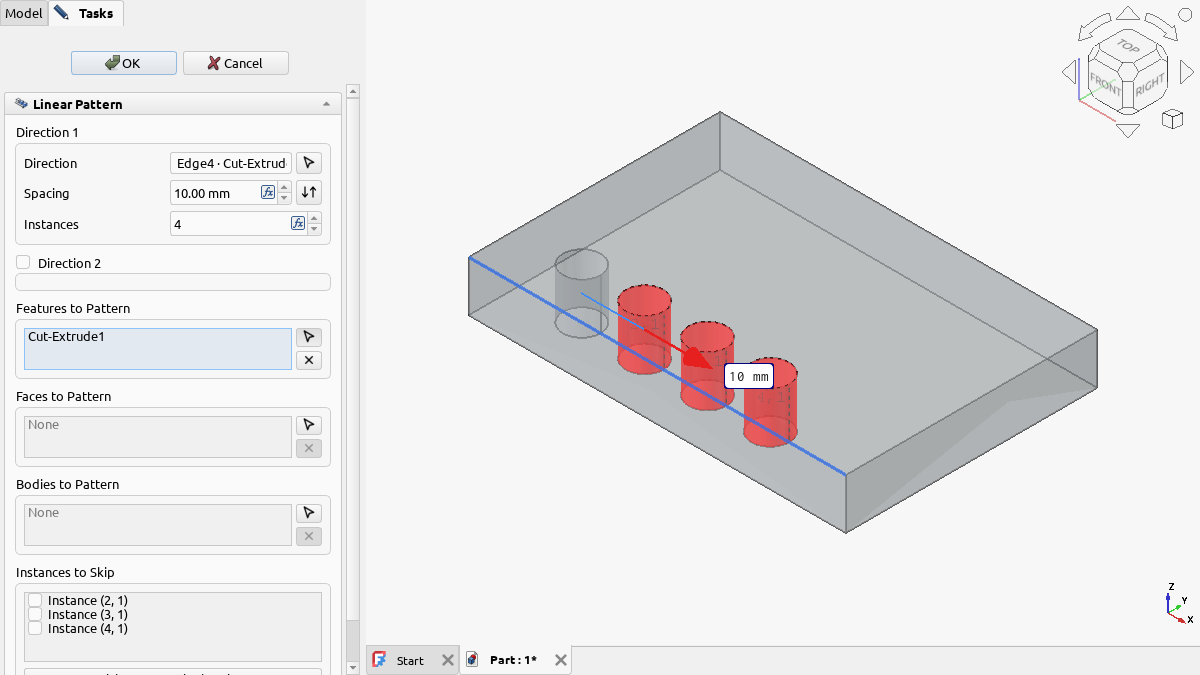
How to use it
- Select the features to repeat (in the tree, or a face they made).
- Click Linear Pattern.
- Click an edge, axis or plane for Direction 1, and set the Spacing and number of Instances (the original counts as one). Drag the arrow to change the spacing.
- Tick Direction 2 for a grid.
- Click OK.
Good to know
- Instances to Skip leaves gaps: tick them in the list, or click Pick Instances in the View and click them.
- Faces to Pattern repeats faces when there is no feature to pick; Bodies to Pattern repeats whole bodies.
Where to find it
- The Features toolbar, in the Patterns drop-down.
- Solid Design → Patterns → Linear Pattern
- Insert → Pattern/Mirror → Linear Pattern
- Command search: press / in the 3D view and type its name.
- The command line: : then
linearpattern(below).
The panel
Every control's tooltip says the same as here: hover over it in FreeCAD. OK (or Enter) makes the feature, Cancel (or Esc) leaves the model as it was.
Direction 1
| Control | Kind | What it does |
|---|---|---|
| Direction | Selection box: click an edge or plane | The direction of the pattern: a straight edge, an axis, or a plane (along its normal) |
| Spacing | A length | Distance between instances (a flip button beside it) |
| Instances | A count | How many, counting the original |
Direction 2
Pattern in a second direction too
Optional: tick its title to use it.
| Control | Kind | What it does |
|---|---|---|
| Direction | Selection box: click an edge or plane | The second direction of the pattern (shown for some choices only) |
| Spacing | A length | Distance between instances in the second direction (a flip button beside it; shown for some choices only) |
| Instances | A count | How many in the second direction, counting the original (shown for some choices only) |
| Pattern seed only | A check box | Repeat only the original in the second direction, not the whole first row (shown for some choices only) |
Features to Pattern
| Control | Kind | What it does |
|---|---|---|
| Features | Selection list: click features in the tree, or their faces | The features to repeat: click them in the tree, or click a face they made |
Faces to Pattern
| Control | Kind | What it does |
|---|---|---|
| Faces | Selection list: click faces | Every face of a boss, hole or pocket to repeat (its walls and top or floor). Material is added where they bound material, cut where they bound a gap. |
Bodies to Pattern
| Control | Kind | What it does |
|---|---|---|
| Bodies | Selection list: click bodies in the 3D view or tree | Whole bodies to repeat |
Instances to Skip
Tick the instances to leave out
| Control | Kind | What it does |
|---|---|---|
| A list | Every instance but the original: tick one to leave it out | |
| Pick Instances in the View | A button | While on, clicking the model where an instance is (or would be) leaves it out, or puts it back |
Drag handles
While the panel is open, drag the handles in the 3D view to set Spacing, or click a handle's value and type. The same handles show when you select the feature in the tree, so you can change it without opening the panel. See drag handles.
On the command line
Press : in the 3D view and type linearpattern, then what to set. See the command line for how it works.
Values typed straight after the name set, in order: Spacing, Instances. For example :linearpattern 10 2.
Options it takes
| Option | How to type it | What it is |
|---|---|---|
Reverse |
reverse turns it on, reverse=no off |
Reverse direction |
Spacing |
spacing=a value |
Spacing |
Instances |
instances=a whole number |
Number of instances (with the seed) |
Direction2 |
direction2 turns it on, direction2=no off |
Pattern in a second direction |
PatternSeedOnly |
patternseedonly turns it on, patternseedonly=no off |
Repeat only the seed in Direction 2 |
Reverse2 |
reverse2 turns it on, reverse2=no off |
Reverse direction |
Spacing2 |
spacing2=a value |
Spacing |
Instances2 |
instances2=a whole number |
Number of instances (with the seed) |
Properties
All properties
What the feature stores, as the Property editor shows it (select the feature in the tree, then the Data tab). The panel sets these for you.
| Property | Kind | Default | What it is |
|---|---|---|---|
Features |
Objects | – | Features to repeat |
Bodies |
List | – | Bodies to repeat, by ID |
Faces |
Picks | – | Faces to repeat: every face of a boss, hole or pocket |
Direction1Ref |
Picks | – | Edge, axis, or plane (its normal) |
Reverse |
Yes/No | No | Reverse direction |
Spacing |
Length | 10 mm | Spacing |
Instances |
Whole number | 2 | Number of instances (with the seed) |
Direction2 |
Yes/No | No | Pattern in a second direction |
PatternSeedOnly |
Yes/No | No | Repeat only the seed in Direction 2 |
Direction2Ref |
Picks | – | Edge, axis, or plane (its normal) |
Reverse2 |
Yes/No | No | Reverse direction |
Spacing2 |
Length | 10 mm | Spacing |
Instances2 |
Whole number | 2 | Number of instances (with the seed) |
InstancesToSkip |
List | – | Instances left out, as i,j (the seed is 1,1) |