Fill Pattern
 Fills a face with features, or with cuts of a simple shape, in rows or rings.
Fill Pattern fills a face with copies in rows or rings: perforated panels, speaker grilles, grip textures.
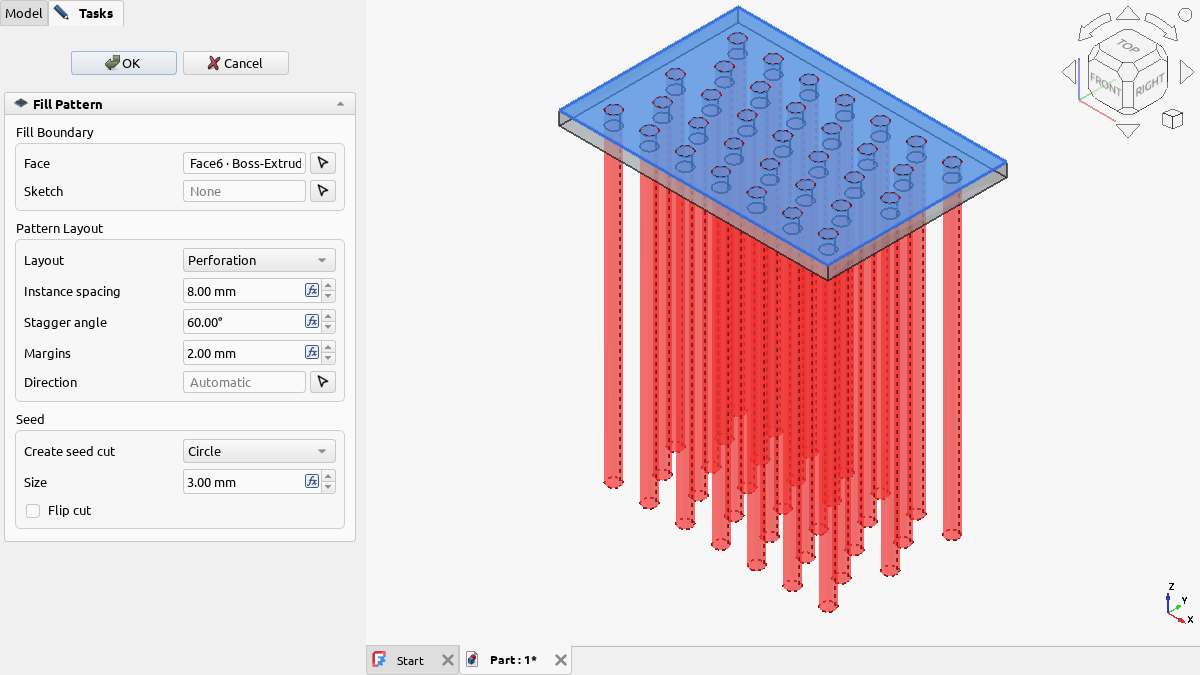
How to use it
- Select the face to fill and click Fill Pattern.
- Choose the Layout (perforation, square, circular or polygon rows) and its spacing.
- Either click features to repeat, or choose a Seed shape (a circle, square...) to cut, with its size.
- Set the Margins from the face's edge, then click OK.
Where to find it
- The Features toolbar, in the Patterns drop-down.
- Solid Design → Patterns → Fill Pattern
- Insert → Pattern/Mirror → Fill Pattern
- Command search: press / in the 3D view and type its name.
- The command line: : then
fillpattern(below).
The panel
Every control's tooltip says the same as here: hover over it in FreeCAD. OK (or Enter) makes the feature, Cancel (or Esc) leaves the model as it was.
Fill Boundary
| Control | Kind | What it does |
|---|---|---|
| Face | Selection box: click a flat face | The flat face to fill |
| Sketch | Selection box: click a sketch | Or a sketch's closed region |
Pattern Layout
| Control | Kind | What it does |
|---|---|---|
| Layout | One of: Perforation, Circular, Square, Polygon | Perforation: staggered rows, like a perforated sheet. Circular: rings round the original. Square: a square grid. Polygon: polygon rings. |
| Instance spacing | A length | Between instances |
| Loop spacing | A length | Between rings (shown for some choices only) |
| Stagger angle | An angle | How each row shifts against the last |
| Sides | A count | The polygon's sides (shown for some choices only) |
| Margins | A length | Kept clear inside the boundary |
| Direction | Selection box: click an edge | The direction the rows run (none: along the boundary's first straight edge) |
Seed
| Control | Kind | What it does |
|---|---|---|
| Create seed cut | One of: None, Circle, Square, Diamond, Polygon | Cut this shape at every instance; None repeats the features you pick below |
| Size | A length | The seed cut's size, across |
| Sides | A count | Polygon seed: sides (shown for some choices only) |
| Flip cut | A check box | Cut the other way |
Features to Pattern
Shown only for some choices above.
| Control | Kind | What it does |
|---|---|---|
| Features | Selection list: click features in the tree, or their faces | The features to repeat: click them in the tree, or click a face they made |
Faces to Pattern
Shown only for some choices above.
| Control | Kind | What it does |
|---|---|---|
| Faces | Selection list: click faces | Every face of a boss, hole or pocket to repeat (its walls and top or floor). Material is added where they bound material, cut where they bound a gap. |
Bodies to Pattern
Shown only for some choices above.
| Control | Kind | What it does |
|---|---|---|
| Bodies | Selection list: click bodies in the 3D view or tree | Whole bodies to repeat |
On the command line
Press : in the 3D view and type fillpattern, then what to set. See the command line for how it works.
Values typed straight after the name set, in order: InstanceSpacing. For example :fillpattern 10.
Options it takes
| Option | How to type it | What it is |
|---|---|---|
Layout |
a word: perforation, circular, square, polygon |
Perforation: staggered rows. Circular: rings. Square: a grid. Polygon: polygon rings |
InstanceSpacing |
instancespacing=a value |
Between instances |
LoopSpacing |
loopspacing=a value |
Between rings (Circular, Polygon) |
StaggerAngle |
staggerangle=a value |
Perforation: how rows shift |
PolygonSides |
polygonsides=a whole number |
Polygon: sides |
Margin |
margin=a value |
Kept clear inside the boundary |
SeedCut |
a word: none, circle, square, diamond, polygon |
Create seed cut: cut this shape at every instance (None: repeat the features picked) |
SeedSize |
seedsize=a value |
The seed cut's size (across) |
SeedSides |
seedsides=a whole number |
Polygon seed: sides |
FlipCut |
flipcut turns it on, flipcut=no off |
Cut the other way |
Properties
All properties
What the feature stores, as the Property editor shows it (select the feature in the tree, then the Data tab). The panel sets these for you.
| Property | Kind | Default | What it is |
|---|---|---|---|
Features |
Objects | – | Features to repeat |
Bodies |
List | – | Bodies to repeat, by ID |
Faces |
Picks | – | Faces to repeat: every face of a boss, hole or pocket |
Boundary |
Picks | – | A flat face to fill |
BoundarySketch |
Object | – | Or: a sketch's closed region |
Layout |
Choice | Perforation | Perforation: staggered rows. Circular: rings. Square: a grid. Polygon: polygon rings Choices: Perforation, Circular, Square, Polygon. |
InstanceSpacing |
Length | 10 mm | Between instances |
LoopSpacing |
Length | 10 mm | Between rings (Circular, Polygon) |
StaggerAngle |
Angle | 60° | Perforation: how rows shift |
PolygonSides |
Whole number | 6 | Polygon: sides |
Margin |
Length | 2 mm | Kept clear inside the boundary |
PatternDirection |
Picks | – | The direction rows run: an edge (none: along the boundary's first straight edge) |
SeedCut |
Choice | None | Create seed cut: cut this shape at every instance (None: repeat the features picked) Choices: None, Circle, Square, Diamond, Polygon. |
SeedSize |
Length | 4 mm | The seed cut's size (across) |
SeedSides |
Whole number | 6 | Polygon seed: sides |
FlipCut |
Yes/No | No | Cut the other way |