Picking things
Tools need things picked: edges for a fillet, a face for a hole, an axis to revolve round. Solid Design picks the way SolidWorks does.
Pick first, or pick in the panel
Select before you click a tool and the tool takes what fits. Or open the tool and click in the 3D view: the panel's active box (the highlighted one) takes the pick. When a box is full, the next box that needs something becomes active.
A pick that the active box can't take goes to another box that can, if only one can. A pick no box takes is refused, and the box says why underneath.
Click a box's arrow button to make it active. Click an item again in the 3D view to take it out, or select it in the list and press Delete; the × button clears the box.
While a panel is open, Delete never deletes anything from the tree: close the panel first.
What you picked
Picks show in the 3D view in the selection colour while the panel is open, so you can see every edge and face a box holds.
Many edges at once
When the last thing you picked into a list is an edge, the chain button beside the list adds the edges that go with it:
- Select Tangency: the edges running smoothly on from it.
- Select Loop: the loop round a face beside it.
- Select Chain: the edges joined end to end with it.
Right-click an edge in the 3D view while a tool is open for the same choices, and Add This Edge.
Temporary axes
When a box wants an axis, hover over a round face or a straight edge: its axis shows as a dashed line. Click it to use it. It stays until it's used or you click elsewhere. Often you don't need a reference axis at all.
Right-click menus
Right-click in the 3D view (with no tool open) for the tools that fit what's under the pointer:
- a face: Sketch on Face, Extrude from Face, Fillet, Chamfer, Shell, a plane on it, more face tools;
- an edge: Fillet, Chamfer, an axis along it, a plane normal to it, a point on it;
- a vertex: a point or a coordinate system at it;
- empty space: Sketch, Part, reference geometry, Show Hidden Bodies, Force Rebuild and What's Wrong.
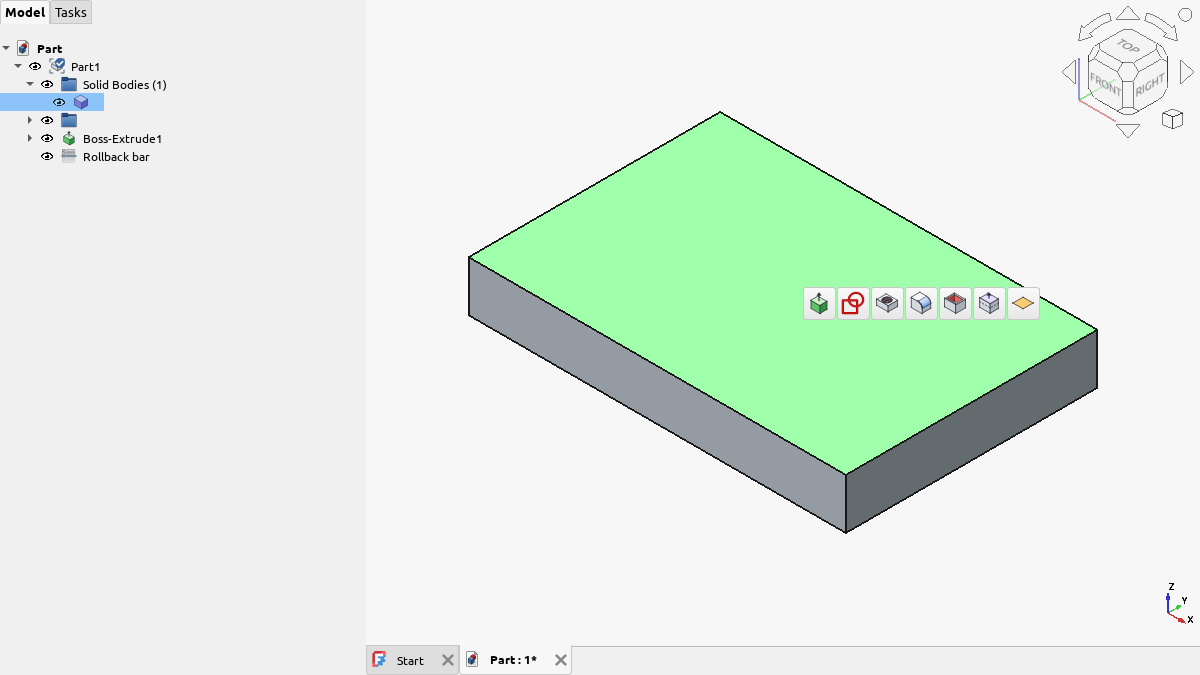
The context toolbar shows the same kind of tools by the pointer after a left click.