Extruded Surface
 Extrudes a sketch's curves (open or closed) into a surface body. Surface in the feature's Add | Cut | Surface switch.
Extruded Surface pushes a sketch's curves out into a surface body. It is Extrude with Surface pressed: the same panel and options.
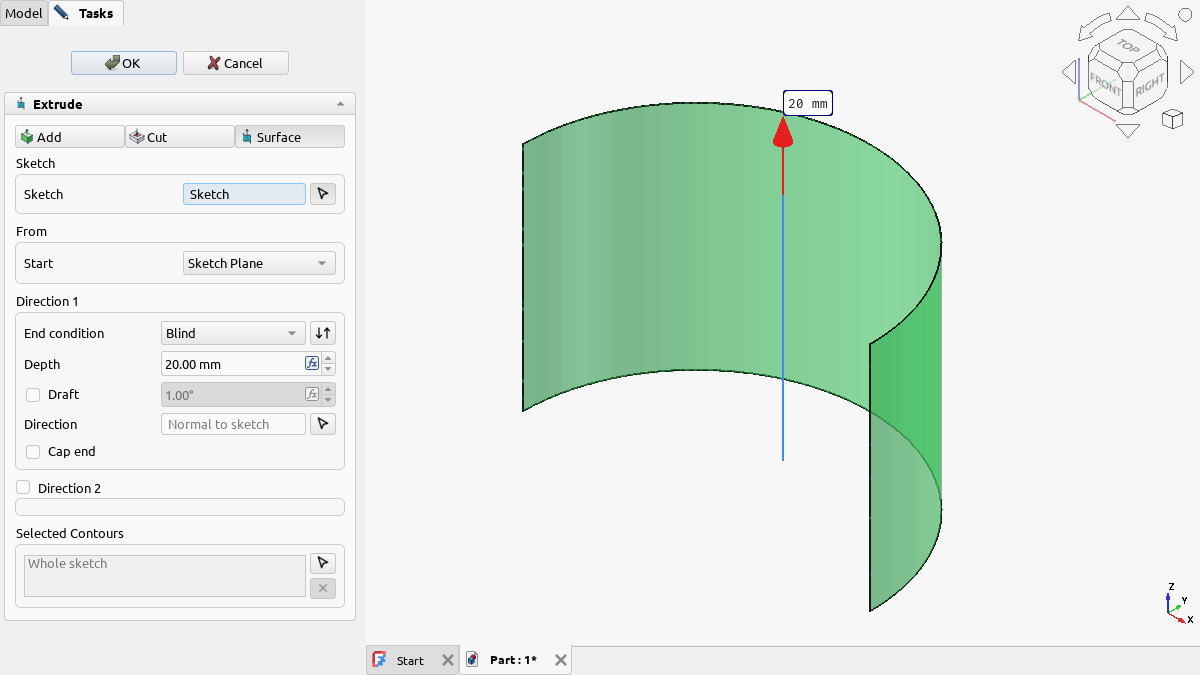
How to use it
- Select a sketch (open or closed) and click Extruded Surface.
- Set the End condition and Depth, or drag the arrow.
- Click OK.
Good to know
- Cap end closes a closed sketch's ends.
- See surfaces.
Where to find it
- The Surfaces toolbar.
- Solid Design → Surfaces → Extruded Surface
- Insert → Surface → Extruded Surface
- Command search: press / in the 3D view and type its name.
- The command line: : then
extrudedsurface(below).
The panel
Every control's tooltip says the same as here: hover over it in FreeCAD. OK (or Enter) makes the feature, Cancel (or Esc) leaves the model as it was.
| Control | Kind | What it does |
|---|---|---|
| **Add \ | Cut \ | Surface** |
Sketch
| Control | Kind | What it does |
|---|---|---|
| Sketch | Selection box: click a sketch | The sketch to use. Press the button, then click a sketch in the 3D view or tree. |
From
Where the extrusion starts
| Control | Kind | What it does |
|---|---|---|
| Start | One of: Sketch Plane, Surface/Face/Plane, Vertex, Offset | Where the extrusion starts: the sketch plane, a face or plane, a vertex, or an offset from the sketch plane |
| Face | Selection box: click a face or plane | The face or plane the extrusion starts from (shown for some choices only) |
| Vertex | Selection box: click a vertex or point | The vertex or point the extrusion starts from (shown for some choices only) |
| Offset | A length | Distance from the sketch plane to the start (a flip button beside it; shown for some choices only) |
Direction 1
| Control | Kind | What it does |
|---|---|---|
| End condition | One of: Blind, Through All, Through All - Both, Up To Next, Up To Vertex, Up To Surface, Offset From Surface, Up To Body, Mid Plane | How far the extrusion goes: a depth, through everything, up to a face, vertex or body, or both ways from the sketch (Mid Plane) (a flip button beside it) |
| Depth | A length | Distance from the sketch to the end |
| Face | Selection box: click a face or plane | The face or plane the extrusion ends at (shown for some choices only) |
| Vertex | Selection box: click a vertex or point | The vertex or point the extrusion ends at (shown for some choices only) |
| Body | Selection box: click a body | The body the extrusion ends at (shown for some choices only) |
| Offset | A length | Distance from the face to the end of the extrusion (a flip button beside it; shown for some choices only) |
| Draft | An angle | Taper the side faces by this angle (tick it to use it) |
| Draft outward | A check box | Taper outwards, so the far end is bigger; off: it is smaller (shown for some choices only) |
| Direction | Selection box: click an edge or plane | Extrude along an edge or axis, or a plane's normal, instead of square to the sketch (none: square to it) |
| Merge result | A check box | Fuse the new material with the bodies it touches. Off: it becomes a body of its own. (shown for some choices only) |
| Flip side to cut | A check box | Remove the material outside the profile instead of inside it (shown for some choices only) |
| Cap end | A check box | Close both ends of a closed profile, so the surface is closed |
Direction 2
Extrude the other way from the sketch too
Optional: tick its title to use it.
| Control | Kind | What it does |
|---|---|---|
| End condition | One of: Blind, Through All, Up To Next, Up To Vertex, Up To Surface, Offset From Surface, Up To Body | How far the extrusion goes: a depth, through everything, up to a face, vertex or body, or both ways from the sketch (Mid Plane) the other way (shown for some choices only) |
| Depth | A length | Distance from the sketch to the end the other way (shown for some choices only) |
| Face | Selection box: click a face or plane | The face or plane the extrusion ends at (shown for some choices only) |
| Vertex | Selection box: click a vertex or point | The vertex or point the extrusion ends at (shown for some choices only) |
| Body | Selection box: click a body | The body the extrusion ends at (shown for some choices only) |
| Offset | A length | Distance from the face to the end of the extrusion (a flip button beside it; shown for some choices only) |
| Draft | An angle | Taper the side faces by this angle (tick it to use it; shown for some choices only) |
| Draft outward | A check box | Taper outwards, so the far end is bigger; off: it is smaller (shown for some choices only) |
Thin Feature
Make a wall of constant thickness from the sketch's curves instead of filling it
Optional: tick its title to use it. Shown only for some choices above.
| Control | Kind | What it does |
|---|---|---|
| Type | One of: One-Direction, Mid-Plane, Two-Direction | Which side of the curves the wall grows on (a flip button beside it; shown for some choices only) |
| Thickness | A length | Wall thickness (shown for some choices only) |
| Thickness 2 | A length | Wall thickness on the second side (shown for some choices only) |
| Cap ends | A check box | Close the ends of the thin feature with walls (shown for some choices only) |
| Cap thickness | A length | Thickness of the end caps (shown for some choices only) |
Selected Contours
| Control | Kind | What it does |
|---|---|---|
| Regions | Selection list: click inside regions of the sketch | Use only some regions of the sketch: click inside them in the 3D view. Empty: the whole sketch. |
Feature Scope
Which bodies the feature works on
Shown only for some choices above.
| Control | Kind | What it does |
|---|---|---|
| **All bodies \ | Selected bodies** | Buttons: All bodies \ |
| Auto-select | A check box | Use the bodies the feature touches; untick to choose them (shown for some choices only) |
| Bodies | Selection list: click bodies in the 3D view or tree | The bodies the feature works on (shown for some choices only) |
Bodies to Keep
The cut splits a body: choose which pieces to keep
Shown only for some choices above.
| Control | Kind | What it does |
|---|---|---|
| **All bodies \ | Selected bodies** | Buttons: All bodies \ |
| A list | Tick the pieces to keep. They are numbered in the 3D view. |
Drag handles
While the panel is open, drag the handles in the 3D view to set Depth, or click a handle's value and type. The same handles show when you select the feature in the tree, so you can change it without opening the panel. See drag handles.
On the command line
Press : in the 3D view and type extrudedsurface, then what to set. See the command line for how it works.
Values typed straight after the name set, in order: Depth, Depth2. For example :extrudedsurface 10 10.
Options it takes
| Option | How to type it | What it is |
|---|---|---|
Mode |
a word: add, cut, surface |
Add material, cut it, or make a surface body |
Thin |
thin turns it on, thin=no off |
Thin Feature on/off |
ThinType |
a word: onedirection, midplane, twodirection |
Thin type |
ThinThickness |
thinthickness=a value |
Thickness |
ThinThickness2 |
thinthickness2=a value |
Thickness 2 (Two-Direction) |
ThinReverse |
thinreverse turns it on, thinreverse=no off |
Reverse the thin direction |
CapEnds |
capends turns it on, capends=no off |
Cap ends (closed profiles) |
CapThickness |
capthickness=a value |
Cap thickness |
MergeResult |
mergeresult turns it on, mergeresult=no off |
Merge result (Add mode) |
FeatureScope |
a word: allbodies, selectedbodies |
Feature scope |
AutoSelect |
autoselect turns it on, autoselect=no off |
Auto-select the bodies in scope |
BodiesToKeep |
a word: allbodies, selectedbodies |
Bodies to Keep |
FlipSideToCut |
flipsidetocut turns it on, flipsidetocut=no off |
Flip side to cut (Cut mode) |
Reverse |
reverse turns it on, reverse=no off |
Reverse Direction |
CapEnd |
capend turns it on, capend=no off |
Surface mode: close both ends of a closed profile (a closed surface) |
From |
a word: sketchplane, surfacefaceplane, vertex, offset |
Where the extrusion starts |
FromOffset |
fromoffset=a value |
Offset of the start from the sketch |
FromReverse |
fromreverse turns it on, fromreverse=no off |
Reverse the start offset |
EndCondition |
a word: blind, throughall, throughallboth, uptonext, uptovertex, uptosurface, offsetfromsurface, uptobody, midplane |
End condition |
Depth |
depth=a value |
Depth |
Offset |
offset=a value |
Offset From Surface distance |
ReverseOffset |
reverseoffset turns it on, reverseoffset=no off |
Reverse offset |
Draft |
draft turns it on, draft=no off |
Draft on/off |
DraftAngle |
draftangle=a value |
Draft angle |
DraftOutward |
draftoutward turns it on, draftoutward=no off |
Draft outward |
Direction2 |
direction2 turns it on, direction2=no off |
Extrude in the other direction too |
EndCondition2 |
a word: blind, throughall, uptonext, uptovertex, uptosurface, offsetfromsurface, uptobody |
End condition |
Depth2 |
depth2=a value |
Depth |
Offset2 |
offset2=a value |
Offset From Surface distance |
ReverseOffset2 |
reverseoffset2 turns it on, reverseoffset2=no off |
Reverse offset |
Draft2 |
draft2 turns it on, draft2=no off |
Draft on/off |
DraftAngle2 |
draftangle2=a value |
Draft angle |
DraftOutward2 |
draftoutward2 turns it on, draftoutward2=no off |
Draft outward |
Properties
All properties
What the feature stores, as the Property editor shows it (select the feature in the tree, then the Data tab). The panel sets these for you.
| Property | Kind | Default | What it is |
|---|---|---|---|
Mode |
Choice | Add | Add material, cut it, or make a surface body Choices: Add, Cut, Surface. |
Sketch |
Object | – | The profile sketch |
Contours |
List | – | Selected Contours: regions of the sketch (bounding geometry IDs + a point inside) |
Thin |
Yes/No | No | Thin Feature on/off |
ThinType |
Choice | One-Direction | Thin type Choices: One-Direction, Mid-Plane, Two-Direction. |
ThinThickness |
Length | 1 mm | Thickness |
ThinThickness2 |
Length | 1 mm | Thickness 2 (Two-Direction) |
ThinReverse |
Yes/No | No | Reverse the thin direction |
CapEnds |
Yes/No | No | Cap ends (closed profiles) |
CapThickness |
Length | 1 mm | Cap thickness |
MergeResult |
Yes/No | Yes | Merge result (Add mode) |
FeatureScope |
Choice | All bodies | Feature scope Choices: All bodies, Selected bodies. |
AutoSelect |
Yes/No | Yes | Auto-select the bodies in scope |
ScopeBodies |
List | – | Body IDs in scope |
BodiesToKeep |
Choice | All bodies | Bodies to Keep Choices: All bodies, Selected bodies. |
KeepBodies |
List | – | Piece IDs to keep |
FlipSideToCut |
Yes/No | No | Flip side to cut (Cut mode) |
Reverse |
Yes/No | No | Reverse Direction |
CapEnd |
Yes/No | No | Surface mode: close both ends of a closed profile (a closed surface) |
From |
Choice | Sketch Plane | Where the extrusion starts Choices: Sketch Plane, Surface/Face/Plane, Vertex, Offset. |
FromOffset |
Length | 0 mm | Offset of the start from the sketch |
FromReverse |
Yes/No | No | Reverse the start offset |
FromFace |
Picks | – | Face or plane to start from |
FromVertex |
Picks | – | Vertex to start from |
DirectionOfExtrusion |
Picks | – | Extrude along an edge, axis or plane normal instead of the sketch's normal |
EndCondition |
Choice | Blind | End condition Choices: Blind, Through All, Through All - Both, Up To Next, Up To Vertex, Up To Surface, Offset From Surface, Up To Body, Mid Plane. |
Depth |
Length | 10 mm | Depth |
UpToFace |
Picks | – | Face or plane to extrude up to |
UpToVertex |
Picks | – | Vertex to extrude up to |
UpToBody |
Text | Body ID to extrude up to | |
Offset |
Length | 0 mm | Offset From Surface distance |
ReverseOffset |
Yes/No | No | Reverse offset |
Draft |
Yes/No | No | Draft on/off |
DraftAngle |
Angle | 1° | Draft angle |
DraftOutward |
Yes/No | No | Draft outward |
Direction2 |
Yes/No | No | Extrude in the other direction too |
EndCondition2 |
Choice | Blind | End condition Choices: Blind, Through All, Up To Next, Up To Vertex, Up To Surface, Offset From Surface, Up To Body. |
Depth2 |
Length | 10 mm | Depth |
UpToFace2 |
Picks | – | Face or plane to extrude up to |
UpToVertex2 |
Picks | – | Vertex to extrude up to |
UpToBody2 |
Text | Body ID to extrude up to | |
Offset2 |
Length | 0 mm | Offset From Surface distance |
ReverseOffset2 |
Yes/No | No | Reverse offset |
Draft2 |
Yes/No | No | Draft on/off |
DraftAngle2 |
Angle | 1° | Draft angle |
DraftOutward2 |
Yes/No | No | Draft outward |