Around the workbench
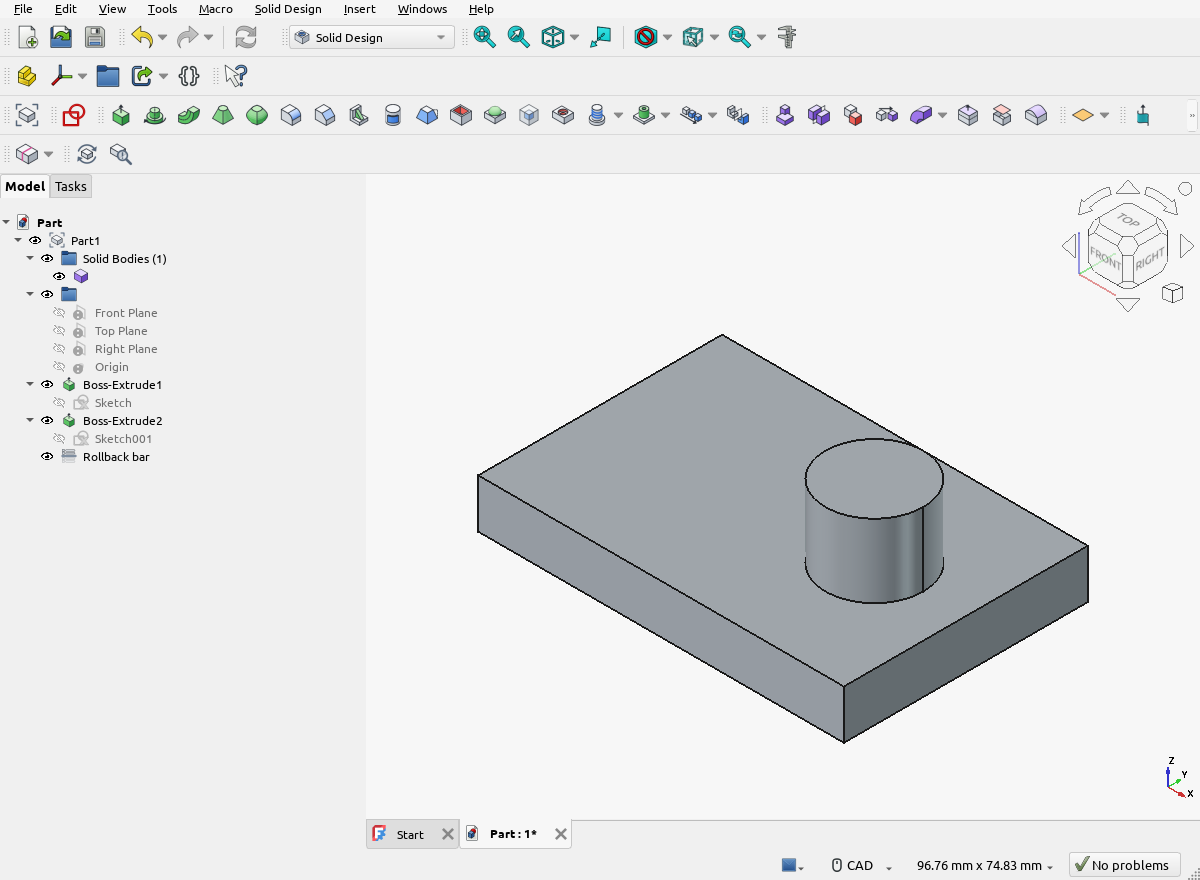
The toolbars
The toolbars follow SolidWorks' CommandManager, left to right: Part, Sketch, Features, Bodies, Reference Geometry, Surfaces, Curves and Evaluate. A button with a small arrow is a drop-down: click the arrow for the other tools in it. Toolbars lists them all.
Every tool is also in the Solid Design menu, and in Insert where SolidWorks keeps it.
The tree
The tree (the Model tab) shows your part: its Origin (three planes and three axes), its bodies, and its features in the order they were made. The Rollback bar at the bottom of the features marks how far the model is built. See parts and bodies.
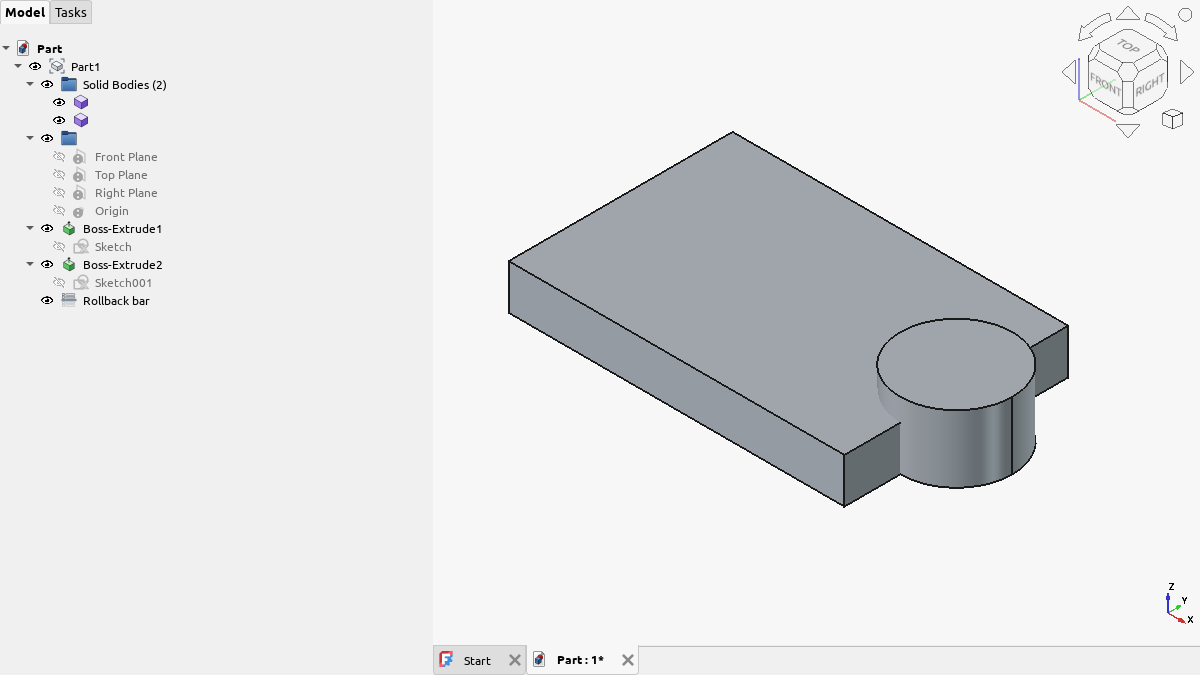
The panel
When a tool is open, its panel takes the Tasks tab. Every panel is built the same way:
- A problem, if there is one, at the top in red, and what it needs.
- For shape tools, Add | Cut | Surface buttons.
- Groups of options, in SolidWorks' order. Hover over any control for what it does.
- Selection boxes: the active one is highlighted; click in the 3D view to fill it. See picking things.
The 3D view shows a live preview: green where material is added, red where it is taken away. OK (or Enter) makes the feature; Cancel (or Esc) leaves the model as it was.
The 3D view
Besides the usual FreeCAD view:
- Drag handles set a feature's sizes by dragging: in a panel, and on a feature you select. See drag handles.
- The context toolbar shows the tools that fit a face, edge or vertex beside the pointer when you click it.
- Right-click a face, edge or vertex for the tools that fit it, or empty space for the rest.
- / opens command search; : the command line. See keyboard modelling.
The status bar
The health badge at the bottom right counts the model's problems. Click it to open What's Wrong.
Next: your first part.