Move Face
 Moves faces of a solid (offset, translate or rotate); the faces around them extend or trim to follow.
Move Face moves faces of a solid directly: offset them, slide them, or turn them. The faces around them stretch or trim to follow. Useful on imported parts with no history.
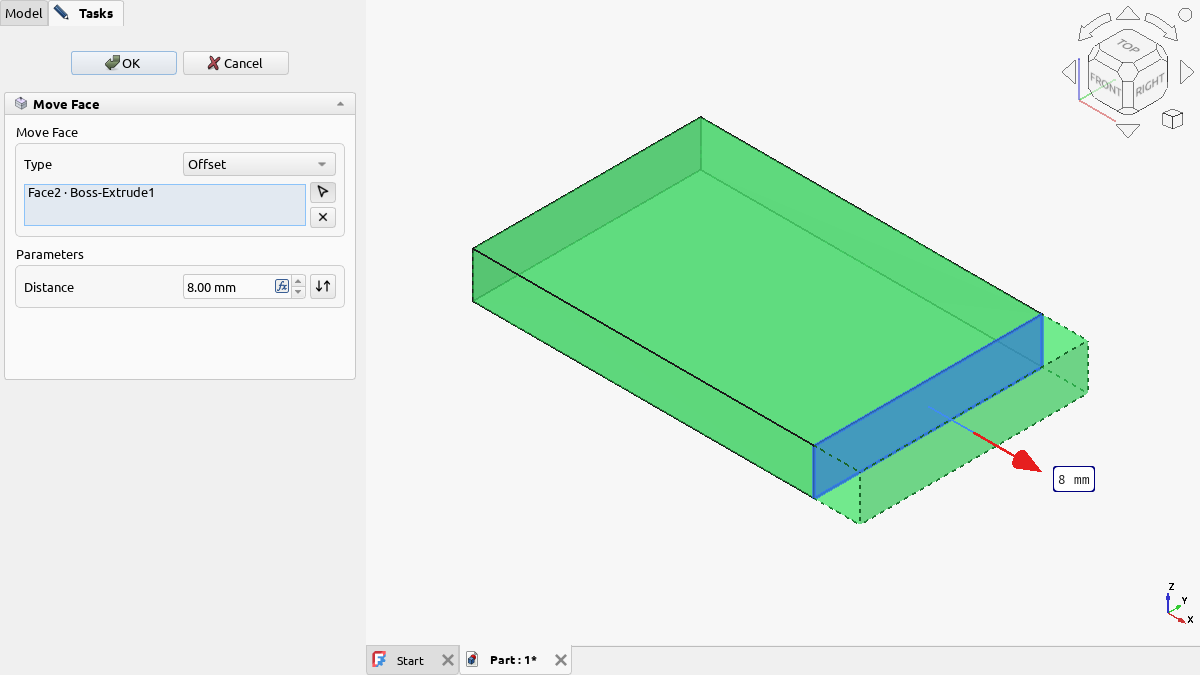
How to use it
- Select the faces and click Move Face.
- Choose Offset, Translate or Rotate.
- Set the distance (or angle), or drag the arrow.
- Click OK.
Where to find it
- The Bodies toolbar.
- Solid Design → Bodies → Move Face
- Insert → Features → Move Face
- Command search: press / in the 3D view and type its name.
- The command line: : then
moveface(below).
The panel
Every control's tooltip says the same as here: hover over it in FreeCAD. OK (or Enter) makes the feature, Cancel (or Esc) leaves the model as it was.
Move Face
| Control | Kind | What it does |
|---|---|---|
| Type | One of: Offset, Translate, Rotate | Offset: along the faces' normals. Translate: along a direction. Rotate: about an axis. The faces around them extend or trim to follow. |
| Faces | Selection list: click faces | The faces to move. Click a face again to take it out. |
Parameters
| Control | Kind | What it does |
|---|---|---|
| Distance | A length | How far to move the faces (a flip button beside it) |
| Direction | Selection box: click an edge, axis or face | The direction to move along: a straight edge, an axis, or a face (its normal) (shown for some choices only) |
| Axis | Selection box: click an edge or axis | The axis to turn the faces about; parallel to them (shown for some choices only) |
| Angle | An angle | How far to turn the faces (shown for some choices only) |
Drag handles
While the panel is open, drag the handles in the 3D view to set Distance, or click a handle's value and type. The same handles show when you select the feature in the tree, so you can change it without opening the panel. See drag handles.
On the command line
Press : in the 3D view and type moveface, then what to set. See the command line for how it works.
Values typed straight after the name set, in order: Distance. For example :moveface 1.
Options it takes
| Option | How to type it | What it is |
|---|---|---|
MoveType |
a word: offset, translate, rotate |
Offset, Translate or Rotate |
Distance |
distance=a value |
Distance (Offset, Translate) |
Angle |
angle=a value |
Rotate: angle |
Flip |
flip turns it on, flip=no off |
The other way |
Properties
All properties
What the feature stores, as the Property editor shows it (select the feature in the tree, then the Data tab). The panel sets these for you.
| Property | Kind | Default | What it is |
|---|---|---|---|
MoveType |
Choice | Offset | Offset, Translate or Rotate Choices: Offset, Translate, Rotate. |
Items |
Picks | – | Faces to move |
Distance |
Length | 1 mm | Distance (Offset, Translate) |
Direction |
Picks | – | Translate: an edge, axis or face (its normal) to move along |
Axis |
Picks | – | Rotate: an edge or axis to turn about |
Angle |
Angle | 10° | Rotate: angle |
Flip |
Yes/No | No | The other way |