Boundary Surface
 Makes a surface body through curves in one or two directions. Surface in the feature's Add | Cut | Surface switch.
Boundary Surface makes a surface body through curves in one or two directions. It is Boundary with Surface pressed.
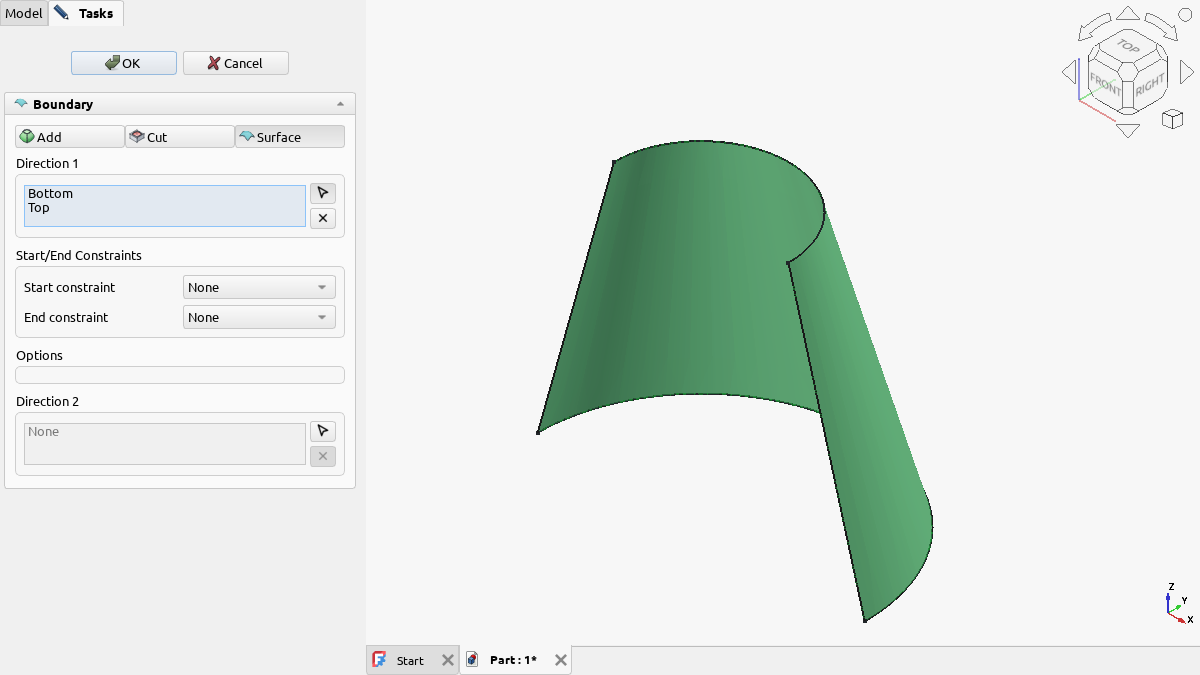
How to use it
- Click Boundary Surface.
- Click the curves for Direction 1, and optionally Direction 2.
- Click OK.
Where to find it
- The Surfaces toolbar.
- Solid Design → Surfaces → Boundary Surface
- Insert → Surface → Boundary Surface
- Command search: press / in the 3D view and type its name.
- The command line: : then
boundarysurface(below).
The panel
Every control's tooltip says the same as here: hover over it in FreeCAD. OK (or Enter) makes the feature, Cancel (or Esc) leaves the model as it was.
| Control | Kind | What it does |
|---|---|---|
| **Add \ | Cut \ | Surface** |
Sketch
Shown only for some choices above.
| Control | Kind | What it does |
|---|---|---|
| Sketch | Selection box: click a sketch | The sketch to use. Press the button, then click a sketch in the 3D view or tree. |
Direction 1
| Control | Kind | What it does |
|---|---|---|
| Profiles | Selection list: click the profiles in order | The sketches to loft through, in order; a point may start or end the loft |
Start/End Constraints
How the loft leaves the first profile and reaches the last
| Control | Kind | What it does |
|---|---|---|
| Start constraint | One of: None, Normal To Profile, Direction Vector, Tangency To Face | None: no constraint. Normal To Profile: the loft leaves the profile square to it. Direction Vector: it leaves along a direction you pick. Tangency To Face: a profile drawn along a face's edges; the loft carries on the faces beside it. |
| Direction | Selection box: click an edge, axis or plane | The direction the loft leaves the profile in: an edge or axis, or a plane's normal (shown for some choices only) |
| Tangent length | A number | How far the constraint reaches into the loft (1: normal) (shown for some choices only) |
| Draft angle | A number | Tilts the loft outwards where it leaves the profile (shown for some choices only) |
| End constraint | One of: None, Normal To Profile, Direction Vector, Tangency To Face | None: no constraint. Normal To Profile: the loft leaves the profile square to it. Direction Vector: it leaves along a direction you pick. Tangency To Face: a profile drawn along a face's edges; the loft carries on the faces beside it. |
| Direction | Selection box: click an edge, axis or plane | The direction the loft leaves the profile in: an edge or axis, or a plane's normal (shown for some choices only) |
| Tangent length | A number | How far the constraint reaches into the loft (1: normal) (shown for some choices only) |
| Draft angle | A number | Tilts the loft outwards where it leaves the profile (shown for some choices only) |
Guide Curves
Curves the loft follows between the profiles
Shown only for some choices above.
| Control | Kind | What it does |
|---|---|---|
| Guide curves | Selection list: click guide curve sketches | Sketches whose curves the loft follows; each must touch every profile |
| Influence | One of: To Next Edge, To Next Guide | To Next Edge: a guide shapes only the faces beside it. To Next Guide: its pull blends to the next guide (with one guide, the whole profile moves). (shown for some choices only) |
Options
| Control | Kind | What it does |
|---|---|---|
| Close loft | A check box | Join the last profile back to the first, making a ring (shown for some choices only) |
| Merge result | A check box | Fuse the new material with the bodies it touches. Off: it becomes a body of its own. (shown for some choices only) |
| Flip side to cut | A check box | Remove the material outside the profile instead of inside it (shown for some choices only) |
Direction 2
Curves crossing every Direction 1 curve: the shape passes through the whole network
| Control | Kind | What it does |
|---|---|---|
| Curves | Selection list: click Direction 2 sketches | Sketches whose curves cross every Direction 1 curve; the first and last run along the ends |
Thin Feature
Make a wall of constant thickness from the sketch's curves instead of filling it
Optional: tick its title to use it. Shown only for some choices above.
| Control | Kind | What it does |
|---|---|---|
| Type | One of: One-Direction, Mid-Plane, Two-Direction | Which side of the curves the wall grows on (a flip button beside it; shown for some choices only) |
| Thickness | A length | Wall thickness (shown for some choices only) |
| Thickness 2 | A length | Wall thickness on the second side (shown for some choices only) |
Selected Contours
Shown only for some choices above.
| Control | Kind | What it does |
|---|---|---|
| Regions | Selection list: click inside regions of the sketch | Use only some regions of the sketch: click inside them in the 3D view. Empty: the whole sketch. |
Feature Scope
Which bodies the feature works on
Shown only for some choices above.
| Control | Kind | What it does |
|---|---|---|
| **All bodies \ | Selected bodies** | Buttons: All bodies \ |
| Auto-select | A check box | Use the bodies the feature touches; untick to choose them (shown for some choices only) |
| Bodies | Selection list: click bodies in the 3D view or tree | The bodies the feature works on (shown for some choices only) |
Bodies to Keep
The cut splits a body: choose which pieces to keep
Shown only for some choices above.
| Control | Kind | What it does |
|---|---|---|
| **All bodies \ | Selected bodies** | Buttons: All bodies \ |
| A list | Tick the pieces to keep. They are numbered in the 3D view. |
On the command line
Press : in the 3D view and type boundarysurface, then what to set. See the command line for how it works.
Options it takes
| Option | How to type it | What it is |
|---|---|---|
Mode |
a word: add, cut, surface |
Add material, cut it, or make a surface body |
Thin |
thin turns it on, thin=no off |
Thin Feature on/off |
ThinType |
a word: onedirection, midplane, twodirection |
Thin type |
ThinThickness |
thinthickness=a value |
Thickness |
ThinThickness2 |
thinthickness2=a value |
Thickness 2 (Two-Direction) |
ThinReverse |
thinreverse turns it on, thinreverse=no off |
Reverse the thin direction |
MergeResult |
mergeresult turns it on, mergeresult=no off |
Merge result (Add mode) |
FeatureScope |
a word: allbodies, selectedbodies |
Feature scope |
AutoSelect |
autoselect turns it on, autoselect=no off |
Auto-select the bodies in scope |
BodiesToKeep |
a word: allbodies, selectedbodies |
Bodies to Keep |
FlipSideToCut |
flipsidetocut turns it on, flipsidetocut=no off |
Flip side to cut (Cut mode) |
Closed |
closed turns it on, closed=no off |
Close the loft back to the first profile |
GuideInfluence |
a word: tonextedge, tonextguide |
To Next Edge: a guide shapes the faces beside it. To Next Guide: it blends to the next guide. |
StartConstraint |
a word: none, normaltoprofile, directionvector, tangencytoface |
Start constraint |
Properties
All properties
What the feature stores, as the Property editor shows it (select the feature in the tree, then the Data tab). The panel sets these for you.
| Property | Kind | Default | What it is |
|---|---|---|---|
Mode |
Choice | Add | Add material, cut it, or make a surface body Choices: Add, Cut, Surface. |
Contours |
List | – | Selected Contours: regions of the sketch (bounding geometry IDs + a point inside) |
Thin |
Yes/No | No | Thin Feature on/off |
ThinType |
Choice | One-Direction | Thin type Choices: One-Direction, Mid-Plane, Two-Direction. |
ThinThickness |
Length | 1 mm | Thickness |
ThinThickness2 |
Length | 1 mm | Thickness 2 (Two-Direction) |
ThinReverse |
Yes/No | No | Reverse the thin direction |
MergeResult |
Yes/No | Yes | Merge result (Add mode) |
FeatureScope |
Choice | All bodies | Feature scope Choices: All bodies, Selected bodies. |
AutoSelect |
Yes/No | Yes | Auto-select the bodies in scope |
ScopeBodies |
List | – | Body IDs in scope |
BodiesToKeep |
Choice | All bodies | Bodies to Keep Choices: All bodies, Selected bodies. |
KeepBodies |
List | – | Piece IDs to keep |
FlipSideToCut |
Yes/No | No | Flip side to cut (Cut mode) |
Profiles |
Objects | – | Profiles in order: sketches, or a point at either end |
Closed |
Yes/No | No | Close the loft back to the first profile |
GuideCurves |
Objects | – | Sketches whose curves the loft follows (each must touch every profile) |
GuideInfluence |
Choice | To Next Edge | To Next Edge: a guide shapes the faces beside it. To Next Guide: it blends to the next guide. Choices: To Next Edge, To Next Guide. |
StartConstraint |
Choice | None | Start constraint Choices: None, Normal To Profile, Direction Vector, Tangency To Face. |