Flex
 Bends, twists, tapers or stretches bodies along an axis.
Flex bends, twists, tapers or stretches bodies along an axis.
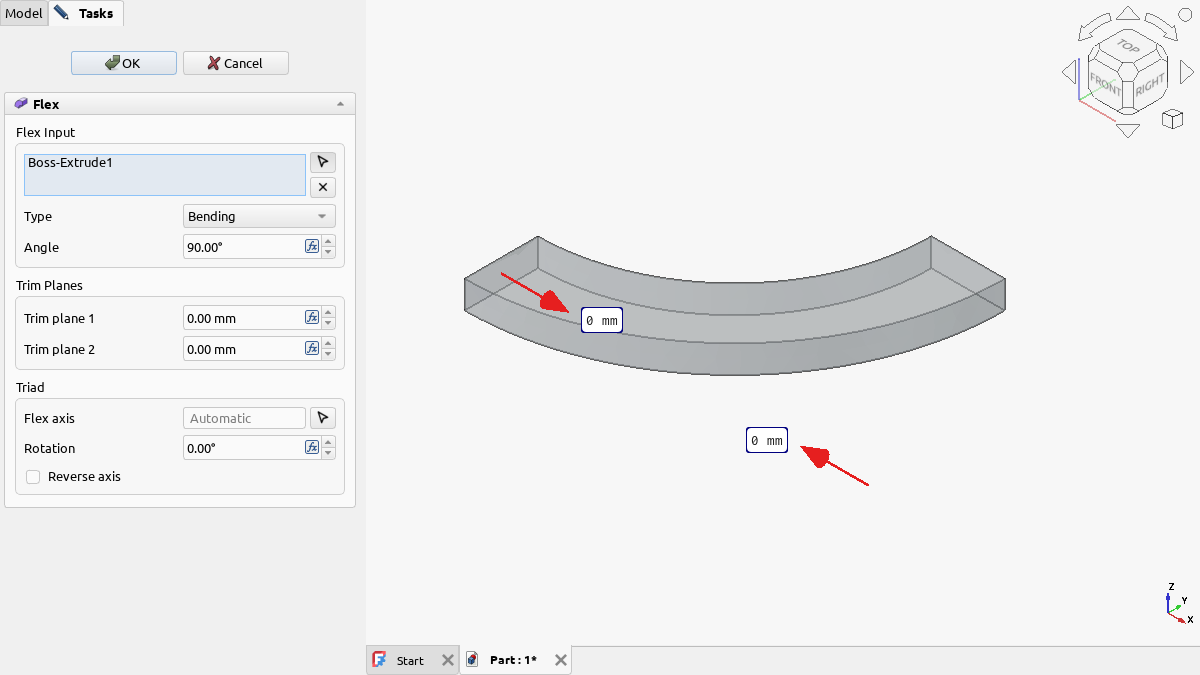
How to use it
- Select the bodies and click Flex.
- Choose the Type: Bending, Twisting, Tapering or Stretching, and set its amount.
- Move the Trim planes to limit the part of the body that flexes.
- Click OK.
Where to find it
- The Bodies toolbar, in the Deform Bodies drop-down.
- Solid Design → Bodies → Flex
- Insert → Features → Flex
- Command search: press / in the 3D view and type its name.
- The command line: : then
flex(below).
The panel
Every control's tooltip says the same as here: hover over it in FreeCAD. OK (or Enter) makes the feature, Cancel (or Esc) leaves the model as it was.
Flex Input
| Control | Kind | What it does |
|---|---|---|
| Bodies | Selection list: click bodies in the 3D view or tree | The bodies to flex (none picked: every solid) |
| Type | One of: Bending, Twisting, Tapering, Stretching | Bending, twisting, tapering or stretching along the flex axis, between the trim planes |
| Angle | An angle | How far it bends or twists |
| Taper factor | A number | Its size at the far trim plane (1: no taper) (shown for some choices only) |
| Stretch distance | A length | How much longer (shown for some choices only) |
Trim Planes
Where the flexing starts and ends along the axis
| Control | Kind | What it does |
|---|---|---|
| Trim plane 1 | A length | In from the body's near end |
| Trim plane 2 | A length | In from the body's far end |
Triad
The flex axis and the way it bends
| Control | Kind | What it does |
|---|---|---|
| Flex axis | Selection box: click an edge or axis | The axis it flexes along (none: the body's longest side) |
| Rotation | An angle | Turns the bend's direction round the flex axis |
| Reverse axis | A check box | Flex from the other end |
Drag handles
While the panel is open, drag the handles in the 3D view to set TrimPlane1, TrimPlane2, or click a handle's value and type. The same handles show when you select the feature in the tree, so you can change it without opening the panel. See drag handles.
On the command line
Press : in the 3D view and type flex, then what to set. See the command line for how it works.
Options it takes
| Option | How to type it | What it is |
|---|---|---|
FlexType |
a word: bending, twisting, tapering, stretching |
Bend, twist, taper or stretch |
Angle |
angle=a value |
Bending / twisting angle |
TaperFactor |
taperfactor=a value |
Tapering: size at the far trim plane |
StretchDistance |
stretchdistance=a value |
Stretching: how much longer |
TrimPlane1 |
trimplane1=a value |
Where the flexing starts: in from the body's near end |
TrimPlane2 |
trimplane2=a value |
Where it ends: in from the body's far end |
TriadRotation |
triadrotation=a value |
Turns the bend's direction round the flex axis |
ReverseAxis |
reverseaxis turns it on, reverseaxis=no off |
Flex from the other end |
Properties
All properties
What the feature stores, as the Property editor shows it (select the feature in the tree, then the Data tab). The panel sets these for you.
| Property | Kind | Default | What it is |
|---|---|---|---|
Bodies |
List | – | Bodies to flex (empty: all solids) |
FlexType |
Choice | Bending | Bend, twist, taper or stretch Choices: Bending, Twisting, Tapering, Stretching. |
Angle |
Angle | 90° | Bending / twisting angle |
TaperFactor |
Number | 0.5 | Tapering: size at the far trim plane |
StretchDistance |
Length | 10 mm | Stretching: how much longer |
TrimPlane1 |
Length | 0 mm | Where the flexing starts: in from the body's near end |
TrimPlane2 |
Length | 0 mm | Where it ends: in from the body's far end |
FlexAxis |
Picks | – | The flex axis: an edge or axis (none: along the body's longest side) |
TriadRotation |
Angle | 0° | Turns the bend's direction round the flex axis |
ReverseAxis |
Yes/No | No | Flex from the other end |