Chamfer
 Creates a bevel on selected edges, faces or a vertex.
Chamfer bevels edges, every edge of a face, or the corner at a vertex.
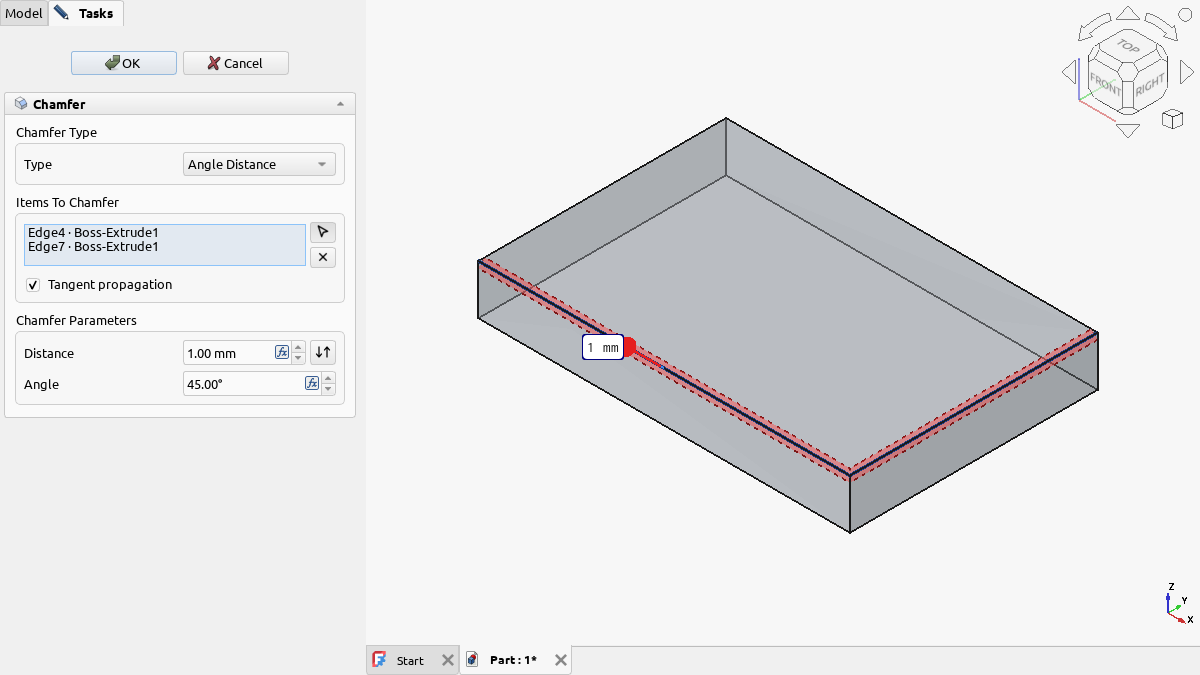
How to use it
- Select edges, faces or a vertex.
- Click Chamfer.
- Choose the chamfer's Type: Angle Distance, Distance Distance, Vertex (three distances at a corner), Offset Face or Face Face. Set its values, or drag the handle.
- Click OK.
Good to know
- Tangent propagation carries the chamfer along tangent edges.
Where to find it
- The Features toolbar.
- Solid Design → Features → Chamfer
- Insert → Features → Chamfer
- Command search: press / in the 3D view and type its name.
- The command line: : then
chamfer(below).
The panel
Every control's tooltip says the same as here: hover over it in FreeCAD. OK (or Enter) makes the feature, Cancel (or Esc) leaves the model as it was.
Chamfer Type
| Control | Kind | What it does |
|---|---|---|
| Type | One of: Angle Distance, Distance Distance, Vertex, Offset Face, Face Face | Angle Distance: a distance and an angle. Distance Distance: a distance on each face. Vertex: three distances at a corner. Offset Face: the faces offset by the distance. Face Face: pick faces that meet; the edges between them are chamfered, the first distance on the face picked first. |
Items To Chamfer
| Control | Kind | What it does |
|---|---|---|
| Edges | Selection list: click edges or faces in the 3D view | The edges to chamfer, or corners for Vertex. Click an item again to take it out. |
| Tangent propagation | A check box | Also include the edges tangent to the ones you picked |
Chamfer Parameters
| Control | Kind | What it does |
|---|---|---|
| Distance | A length | Size of the chamfer (a flip button beside it) |
| Angle | An angle | Angle of the chamfer face |
| Equal distance | A check box | Use the same distance on every side (shown for some choices only) |
| Distance 2 | A length | Size of the chamfer on the second face (shown for some choices only) |
| Distance 3 | A length | Size of the chamfer along the third edge (shown for some choices only) |
Drag handles
While the panel is open, drag the handles in the 3D view to set Distance, or click a handle's value and type. The same handles show when you select the feature in the tree, so you can change it without opening the panel. See drag handles.
On the command line
Press : in the 3D view and type chamfer, then what to set. See the command line for how it works.
Values typed straight after the name set, in order: Distance. For example :chamfer 1.
Options it takes
| Option | How to type it | What it is |
|---|---|---|
TangentPropagation |
tangentpropagation turns it on, tangentpropagation=no off |
Include edges tangent to the picked ones |
ChamferType |
a word: angledistance, distancedistance, vertex, offsetface, faceface |
Chamfer type |
Distance |
distance=a value |
Distance (d1) |
Distance2 |
distance2=a value |
Second distance (d2) |
Distance3 |
distance3=a value |
Third distance (d3, Vertex) |
Angle |
angle=a value |
Angle (Angle Distance) |
EqualDistance |
equaldistance turns it on, equaldistance=no off |
Equal distance |
FlipDirection |
flipdirection turns it on, flipdirection=no off |
Flip direction |
Properties
All properties
What the feature stores, as the Property editor shows it (select the feature in the tree, then the Data tab). The panel sets these for you.
| Property | Kind | Default | What it is |
|---|---|---|---|
Items |
Picks | – | Edges, faces (all their edges) or vertices |
TangentPropagation |
Yes/No | Yes | Include edges tangent to the picked ones |
ChamferType |
Choice | Angle Distance | Chamfer type Choices: Angle Distance, Distance Distance, Vertex, Offset Face, Face Face. |
Distance |
Length | 1 mm | Distance (d1) |
Distance2 |
Length | 1 mm | Second distance (d2) |
Distance3 |
Length | 1 mm | Third distance (d3, Vertex) |
Angle |
Angle | 45° | Angle (Angle Distance) |
EqualDistance |
Yes/No | Yes | Equal distance |
FlipDirection |
Yes/No | No | Flip direction |