Table Driven Pattern
 Repeats features or bodies at X, Y positions you type in.
Table Driven Pattern places copies at X, Y positions you type, measured in a coordinate system.
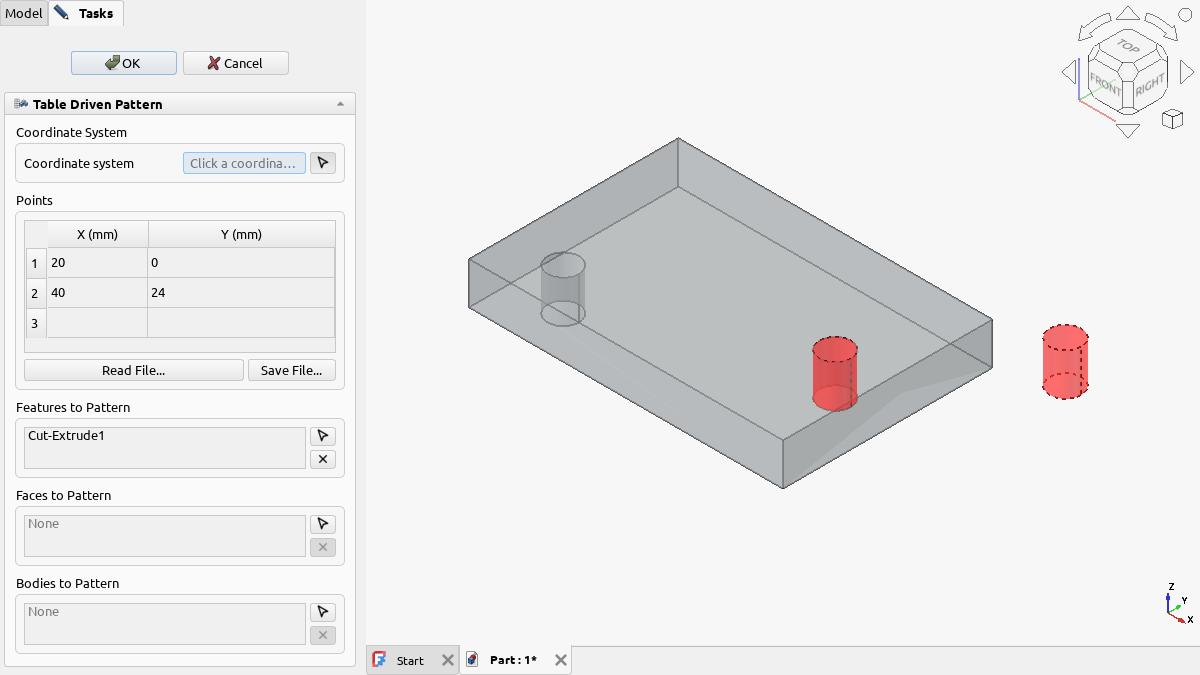
How to use it
- Select the features to repeat and click Table Driven Pattern.
- Optionally click a coordinate system; without one the part's origin is used.
- Type each copy's X and Y in the Points table. A new empty row appears as you fill the last one.
- Click OK.
Good to know
- Read File and Save File load and save the points as a text file.
Where to find it
- The Features toolbar, in the Patterns drop-down.
- Solid Design → Patterns → Table Driven Pattern
- Insert → Pattern/Mirror → Table Driven Pattern
- Command search: press / in the 3D view and type its name.
- The command line: : then
tabledrivenpattern.
The panel
Every control's tooltip says the same as here: hover over it in FreeCAD. OK (or Enter) makes the feature, Cancel (or Esc) leaves the model as it was.
Coordinate System
| Control | Kind | What it does |
|---|---|---|
| Coordinate system | Selection box: click a coordinate system | The X and Y values are in this coordinate system (none: the part's origin) |
Points
Where each instance's centre goes (the original's centre is point 0)
| Control | Kind | What it does |
|---|---|---|
| A table: X (mm), Y (mm) | Type the X and Y of each instance; the last row is always empty for a new point | |
| Read File... | A button | Read or save the points as a table file (a Save File... button) |
Features to Pattern
| Control | Kind | What it does |
|---|---|---|
| Features | Selection list: click features in the tree, or their faces | The features to repeat: click them in the tree, or click a face they made |
Faces to Pattern
| Control | Kind | What it does |
|---|---|---|
| Faces | Selection list: click faces | Every face of a boss, hole or pocket to repeat (its walls and top or floor). Material is added where they bound material, cut where they bound a gap. |
Bodies to Pattern
| Control | Kind | What it does |
|---|---|---|
| Bodies | Selection list: click bodies in the 3D view or tree | Whole bodies to repeat |
Properties
All properties
What the feature stores, as the Property editor shows it (select the feature in the tree, then the Data tab). The panel sets these for you.
| Property | Kind | Default | What it is |
|---|---|---|---|
Features |
Objects | – | Features to repeat |
Bodies |
List | – | Bodies to repeat, by ID |
Faces |
Picks | – | Faces to repeat: every face of a boss, hole or pocket |
CoordinateSystem |
Object | – | The coordinate system the X and Y values are in (none: the part's origin) |
Points |
List | – | Instance positions, as X,Y |