Combine
 Combines bodies: adds them, subtracts some from a main body, or keeps what they have in common.
Combine joins bodies, subtracts some from a main body, or keeps only what they share.
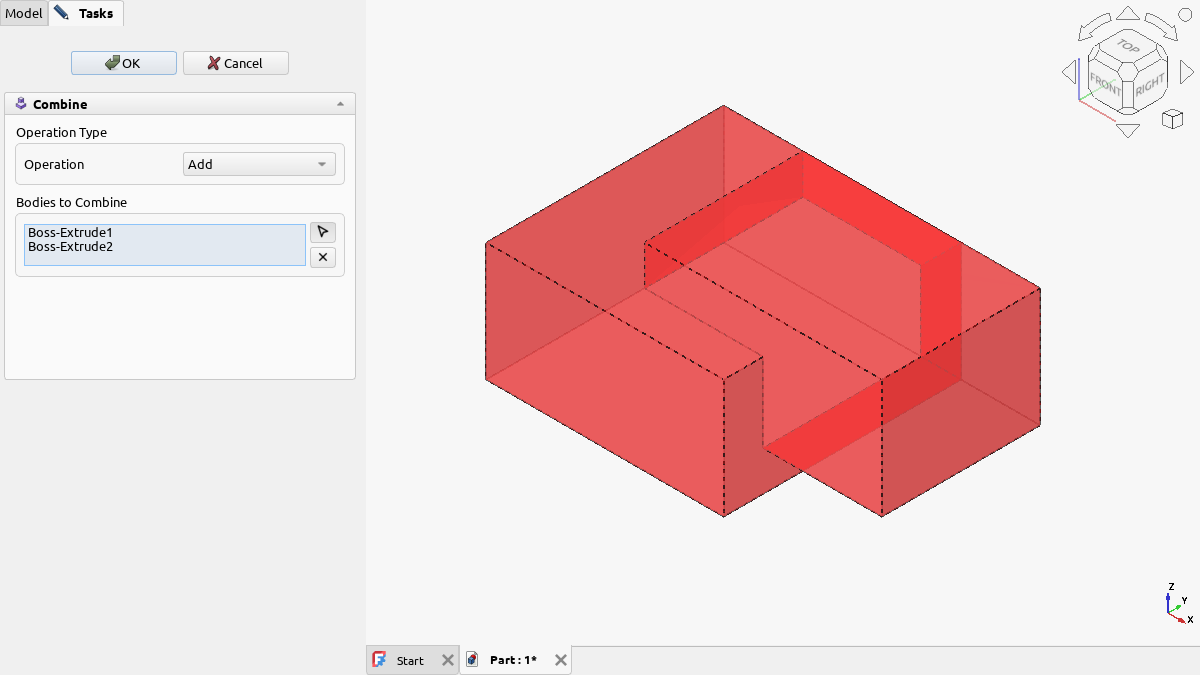
How to use it
- Select the bodies.
- Click Combine and choose the Operation: Add, Subtract or Common.
- For Subtract, pick the Main Body and the bodies to take away from it.
- Click OK.
Where to find it
- The Bodies toolbar.
- Solid Design → Bodies → Combine
- Insert → Features → Combine
- Command search: press / in the 3D view and type its name.
- The command line: : then
combine(below).
The panel
Every control's tooltip says the same as here: hover over it in FreeCAD. OK (or Enter) makes the feature, Cancel (or Esc) leaves the model as it was.
Operation Type
| Control | Kind | What it does |
|---|---|---|
| Operation | One of: Add, Subtract, Common | Add: fuse the bodies into one. Subtract: cut the other bodies from the main body. Common: keep only where the bodies overlap. |
Main Body
Shown only for some choices above.
| Control | Kind | What it does |
|---|---|---|
| Main body | Selection box: click a body | The body the others are cut from |
Bodies to Combine
| Control | Kind | What it does |
|---|---|---|
| Bodies | Selection list: click bodies in the 3D view or tree | The bodies to combine. Click one again to take it out. |
On the command line
Press : in the 3D view and type combine, then what to set. See the command line for how it works.
Options it takes
| Option | How to type it | What it is |
|---|---|---|
Operation |
a word: add, subtract, common |
Operation |
Properties
All properties
What the feature stores, as the Property editor shows it (select the feature in the tree, then the Data tab). The panel sets these for you.
| Property | Kind | Default | What it is |
|---|---|---|---|
Operation |
Choice | Add | Operation Choices: Add, Subtract, Common. |
MainBody |
Text | Main body (Subtract), by ID | |
Bodies |
List | – | Bodies to combine (Add, Common) or to subtract, by ID |