Replace Face
 Replaces faces of a solid with a surface: the solid grows out to it or is trimmed back.
Replace Face swaps faces of a solid for a surface: the solid grows out to the surface or is trimmed back to it.
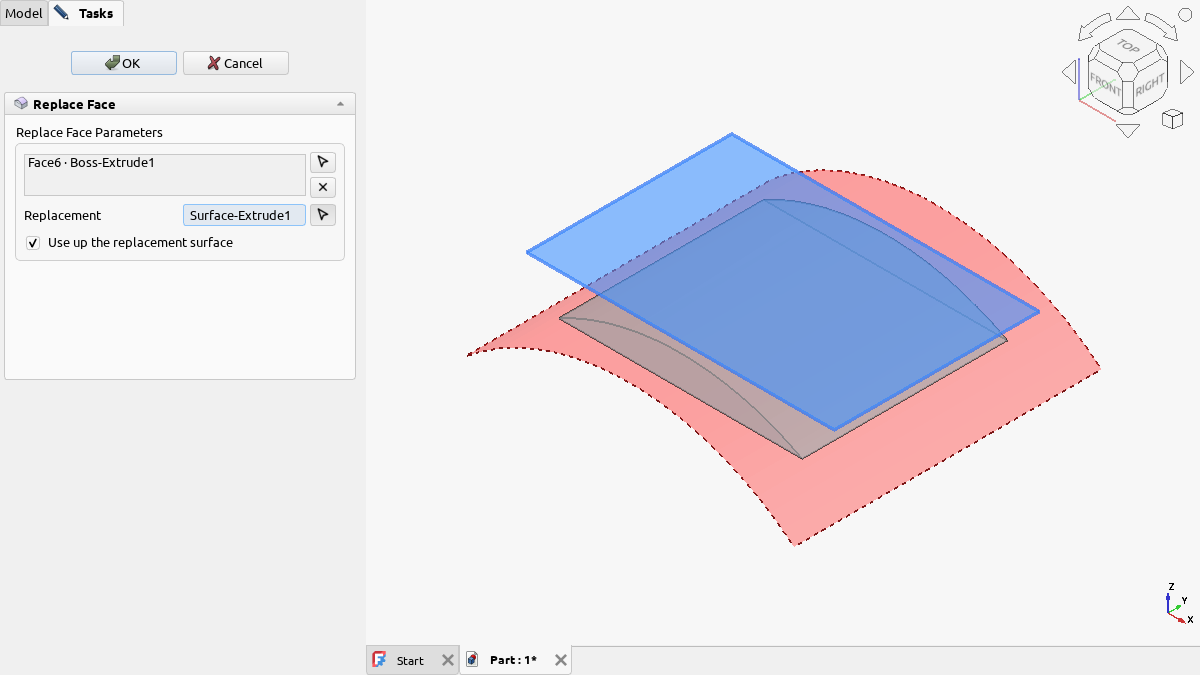
How to use it
- Make the replacement surface, reaching past the edges of the faces it replaces.
- Select the faces to replace and click Replace Face.
- Click the surface into Replacement.
- Click OK.
Where to find it
- The Bodies toolbar.
- Solid Design → Bodies → Replace Face
- Insert → Features → Replace Face
- Command search: press / in the 3D view and type its name.
- The command line: : then
replaceface(below).
The panel
Every control's tooltip says the same as here: hover over it in FreeCAD. OK (or Enter) makes the feature, Cancel (or Esc) leaves the model as it was.
Replace Face Parameters
| Control | Kind | What it does |
|---|---|---|
| Faces | Selection list: click faces | The faces to replace |
| Replacement | Selection box: click a body | The surface that replaces them |
| Use up the replacement surface | A check box | Hide it in the result, as SolidWorks does |
On the command line
Press : in the 3D view and type replaceface, then what to set. See the command line for how it works.
Options it takes
| Option | How to type it | What it is |
|---|---|---|
ConsumeSurface |
consumesurface turns it on, consumesurface=no off |
Use up the replacement surface |
Properties
All properties
What the feature stores, as the Property editor shows it (select the feature in the tree, then the Data tab). The panel sets these for you.
| Property | Kind | Default | What it is |
|---|---|---|---|
Items |
Picks | – | Faces to replace |
ReplacementBody |
Text | The replacement surface body, by ID | |
ConsumeSurface |
Yes/No | Yes | Use up the replacement surface |